Understanding Mobile Data and APN Settings
Mobile data refers to the wireless internet connection provided by a cellular network, allowing devices such as smartphones and tablets to access online content without the need for Wi-Fi. It is a crucial service, offering users the flexibility to connect to the internet while on the go, enabling activities such as web browsing, streaming video, and using applications that require an active internet connection. The seamless operation of mobile data hinges on several underlying technologies and configurations, one of the most important of which is the Access Point Name (APN).
An APN serves as a gateway between a mobile network and the internet. It is essentially a set of configurations that defines how mobile devices connect to the network and the internet. Each mobile carrier provides specific APN settings that include parameters such as the gateway URL, network type (e.g., LTE, GSM), and various security protocols. These configurations ensure that devices can route their internet requests appropriately and receive the corresponding data.
For a mobile device to access the internet effectively, correct APN settings must be established. These settings dictate not only connectivity type but also the security measures in place. Incorrect APN configurations can lead to issues such as an inability to connect to mobile data, slow internet speeds, or intermittent connectivity. Users facing these challenges often need to verify and update their device’s APN settings to match those provided by their mobile carrier. This process can typically be done through the device’s settings menu, where the user can enter or modify the details as necessary to ensure a stable and secure connection.
Understanding the relationship between mobile data and APN settings is essential for troubleshooting and enhancing mobile internet connectivity. A well-configured APN allows users to fully utilize their mobile data services, leading to a more dependable online experience.
Common Signs of Mobile Data Issues
Mobile data connectivity issues can manifest in various ways, making it essential for users to recognize these symptoms promptly. One of the most common signs that users may encounter is an inability to load web pages. When attempting to access websites, users may experience extended loading times, a blank screen, or an error page indicating that the site cannot be reached. This situation can occur when the mobile data connection is weak or interrupted due to network congestion or other factors.
Another prevalent indication of mobile data problems is the malfunction of applications that require internet access. Users may find that social media apps, email clients, or streaming services do not function properly. For instance, an app may fail to refresh content or produce error messages related to a lack of connectivity. In scenarios where applications crash, freeze, or return unexpected error notifications, it is likely that an underlying mobile data issue is present.
Additionally, users may receive error messages that explicitly mention data connectivity problems. Common notifications can include alerts about “No Internet Connection” or “Data Limit Reached.” Such messages serve as clear indicators that there is a disruption in the mobile data service. It is crucial to address these issues promptly, as they can lead to potential disruptions in communication and essential online tasks.
Overall, being attentive to these common signs, such as webpage loading failures, app malfunctions, and explicit error messages, can guide users in troubleshooting their mobile data connectivity efficiently. Recognizing these symptoms early can facilitate timely interventions to restore functionality.
Verifying Mobile Data is Enabled
Ensuring that mobile data is enabled on your device is a fundamental step in troubleshooting mobile data connection issues. Whether you are using an Android or iOS device, the process of verifying mobile data settings is relatively straightforward.
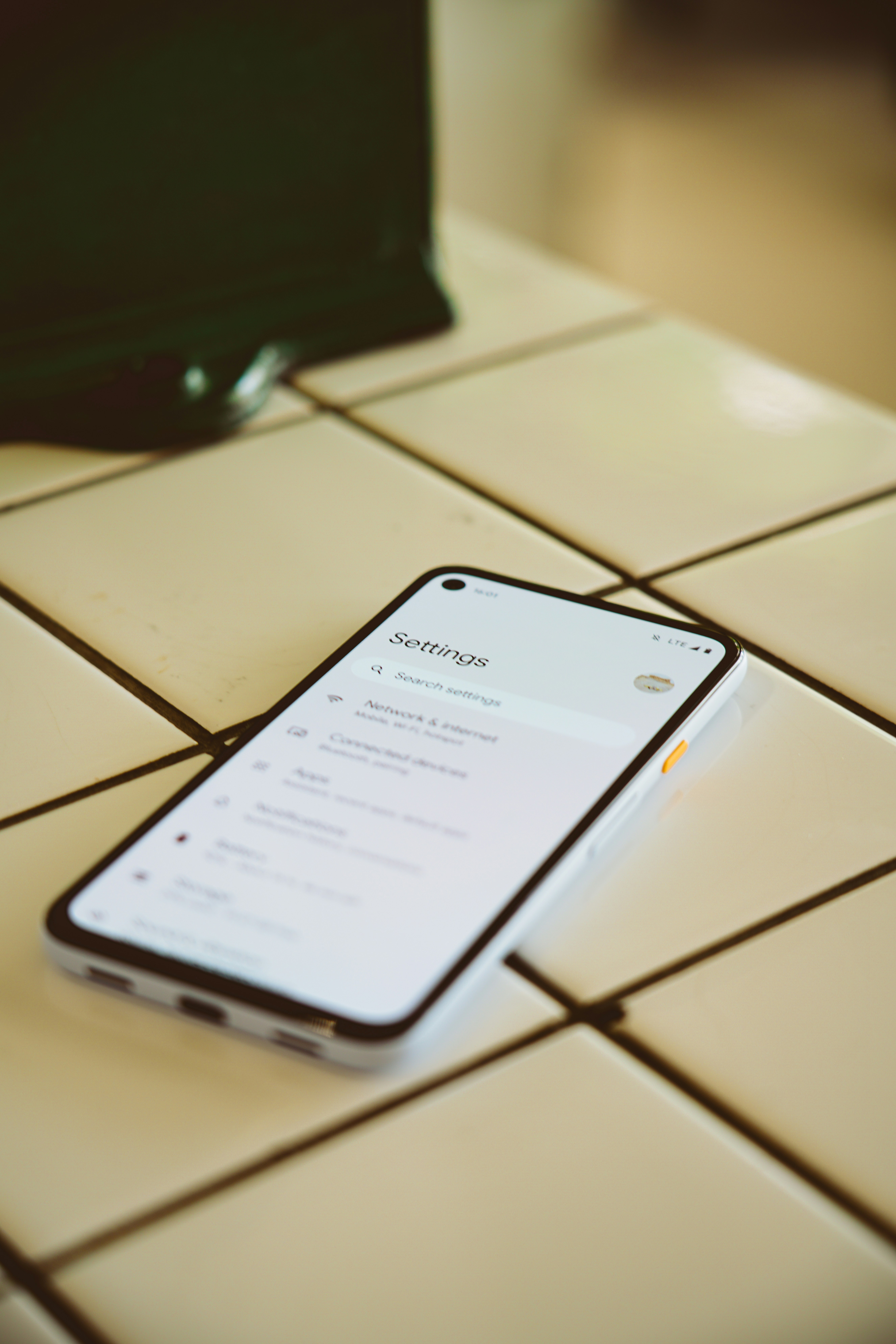
For Android users, begin by accessing the device’s Settings application. Scroll down and tap on Network & internet, then select Mobile network. Here, you will find an option labeled Mobile data. Make sure this setting is turned on; if it is not, simply toggle the switch to enable mobile data. Additionally, if you have multiple SIM cards, ensure that you are checking the correct one, as settings can vary per SIM.
iOS users can verify their mobile data settings by navigating to the Settings app as well. Once in the Settings menu, select Cellular or Mobile Data, depending on your device’s language settings. Here, you will see an option for Cellular Data. Confirm that this option is toggled to the on position. Similar to Android, if you use multiple SIMs, ensure that the appropriate SIM is activated for mobile data usage.
After enabling mobile data on either platform, it can be helpful to restart the device. This action often refreshes the connection to the mobile network and can resolve transient connectivity problems. By following these steps to ensure that mobile data is enabled, you take a significant step toward troubleshooting and enhancing your mobile connectivity.
Accessing APN Settings on Your Device
Accessing the Access Point Name (APN) settings on your mobile device is crucial for troubleshooting data connection issues. These settings dictate how your device connects to the mobile network and can be the key to resolving connectivity problems. The process varies slightly between Android and iOS devices. Below, we outline the steps for both systems.
For Android Devices: The steps to access APN settings can differ slightly depending on the manufacturer of the device, but the general procedure remains largely consistent across most Android platforms. Begin by navigating to the Settings app, which can typically be found in your application drawer or on the home screen. Once in Settings, scroll down to find the option labeled Network & internet or Connections, depending on your device. Tap on this option, and then select Mobile network or Cellular network.
Next, locate and tap on Advanced, where you will find the option Access Point Names. Here, you can view your existing APN settings or add a new one by tapping the ‘+’ icon, should you need to enter specific parameters provided by your carrier.
For iOS Devices: The process on iOS is slightly less complex. Start by opening the Settings app on your iPhone. Scroll down and select Cellular, then tap on Cellular Data Options. Here, you will find Cellular Network or simply APN Settings.
In this section, you can view the current APN configuration and make necessary adjustments based on the information from your mobile provider. Adjusting these settings correctly is essential for ensuring a smooth mobile data experience.
Identifying Correct APN Settings
Access Point Name (APN) settings are crucial for establishing a data connection on mobile devices. Identifying and configuring the correct APN settings can significantly improve connectivity issues, enabling seamless access to the internet and other mobile data services. To obtain the right APN settings for your mobile carrier, there are several effective methods to consider.
Firstly, visiting your carrier’s official website should be your initial step. Most mobile service providers have dedicated support sections where they provide detailed information on APN settings that are compatible with their network. This approach ensures that users receive accurate and up-to-date configurations, which is essential for proper data connectivity.
If the website does not yield the required information, contacting customer support is another reliable option. Most carriers offer various modes of support, including phone assistance, live chat, or email support. A representative can guide you through the required APN settings to configure on your device, ensuring proper accessibility to mobile data services.
Additionally, there are third-party websites that maintain extensive databases of APN settings across different carriers globally. Websites like APNSettings.org or others can provide a consolidated list of APN settings. However, caution should be exercised when using these resources, as they may not always reflect the most current configurations. Whenever possible, it is advisable to cross-check these settings with your carrier’s official website or customer support.
In conclusion, obtaining the correct APN settings is vital for ensuring optimal mobile data connectivity. By utilizing official carrier resources, seeking assistance from customer support, and responsibly exploring third-party websites, users can effectively resolve issues related to mobile data connections.
Editing APN Settings for Troubleshooting
To address mobile data connection problems, editing the Access Point Name (APN) settings may be an effective solution. APN settings are vital for properly connecting your device to your mobile network, enabling data services, and ensuring optimal performance. Below is a comprehensive guide on how to edit these settings across various devices.
First, navigate to your device’s settings. This is typically found by tapping on the gear icon within your application menu. Once in the settings, locate the ‘Network & internet’ or ‘Connections’ option, which may vary depending on your device’s operating system. Here, you’ll find the ‘Mobile network’ section where you can access your APN settings.
Within the Mobile network settings, select ‘Access Point Names.’ You should see a list of existing APNs. To modify an existing APN, tap on it. Alternatively, you can create a new one by selecting the option to add a new APN, usually denoted by a ‘+’ sign. When entering or editing your APN, ensure that key parameters such as ‘Name,’ ‘APN,’ ‘Username,’ and ‘Password’ are set correctly according to the specifications provided by your mobile carrier. Pay particular attention to the ‘MMSC’ and ‘MMS proxy’ fields if you’re also looking to troubleshoot multimedia messaging capabilities.
After entering the appropriate values, save your changes, which is often done by tapping the menu button and selecting ‘Save.’ Depending on the device, you might be prompted to choose the updated APN as your active connection. Once you’ve saved the changes, it’s advisable to reset your device. Rebooting your phone can help manifest the changes implemented in your APN settings and resolve lingering connectivity issues.
Testing Mobile Data Connectivity
After making adjustments to the Access Point Name (APN) settings, it is essential to verify that mobile data connectivity is functioning correctly. There are several methods to test the mobile data connection effectively.
First and foremost, you can use a web browser to check your internet connectivity. Open your preferred browser and attempt to navigate to a few websites. Start with well-known sites to ensure you can establish a proper connection. If the pages load without issues, it suggests that your mobile data is working as intended. Additionally, you should confirm that any restrictions, such as data limits set in your device settings, are not hindering access.
Next, consider using specific applications for testing. Tools like speed test applications can provide insightful information about your mobile data performance. Download and install a speed test app from your app store, then run the test to gauge your connection speed and latency. A successful test will indicate that your mobile data settings are correctly configured and that you are receiving the expected network performance.
Moreover, you can run diagnostics through your device settings. Many smartphones offer built-in diagnostic tools that can analyze your network connection. Navigate to your device’s settings and look for options like “Network Diagnostics” or “Connection Test.” Following any prompts can help identify if there are lingering issues affecting your mobile data connectivity.
Finally, it may be beneficial to restart your device after modifying APN settings. This action can refresh your network connections and often resolves minor issues. Conduct these tests systematically to obtain the most accurate assessment of your mobile data functionality. Identifying connectivity issues early can save time and ensure a seamless internet experience.
Additional Troubleshooting Steps
If adjusting the Access Point Name (APN) settings does not resolve your mobile data connection issues, several alternative troubleshooting methods may be employed. Following these steps can assist in identifying and rectifying the underlying problems affecting connectivity.
One primary step to consider is resetting your network settings. This action will revert all network configurations to their original state. To perform this, navigate to the settings menu on your device, locate “Network & Internet” or similar, and select the option to reset network settings. Note that this will erase saved Wi-Fi connections, Bluetooth pairings, and any previously configured VPN settings, so it is advisable to document this information beforehand.
Another significant method to improve connectivity is to ensure that your device’s firmware is up to date. Manufacturers frequently release updates that can resolve known issues and enhance performance. To check for updates, go to the settings menu, select “About phone” or “System,” and tap on “Software Update.” Install any available updates and restart your device.
It is also crucial to examine the SIM card, as physical issues can contribute to poor mobile data connection. Begin by removing the SIM card and inspecting it for any signs of damage or dirt. Gently clean the contacts with a soft cloth. After cleaning, reinsert the SIM card securely to ensure a proper connection. If problems continue, testing the SIM card in another device can help identify if the issue lies with the card itself or your current device.
Last but not least, contacting your mobile service provider can provide additional insights, especially if there are outages or issues in your area affecting connectivity.
When to Contact Customer Support
While many mobile data connection issues can be resolved using the Advanced Phone Network (APN) settings, there are situations where user intervention is insufficient, and contacting customer support becomes necessary. Recognizing when to seek assistance from your mobile carrier’s customer service can save time and lead to a faster resolution.
One important indicator is when you have attempted the standard troubleshooting steps—such as verifying your APN settings, restarting your mobile device, and ensuring that airplane mode is turned off—but your data connection issues persist. If you find that your mobile data is consistently slow, intermittent, or completely unavailable despite following proper setup instructions, this is a clear sign that assistance is needed.
Additionally, if you encounter specific error messages that seem unresolved through typical solutions, contacting your provider can provide insights that are not accessible through self-troubleshooting. For instance, errors related to network authentication or registration commonly indicate issues that only the carrier can rectify.
When reaching out to customer support, it is crucial to have specific information readily available. Your device type should be noted, as different devices might require different configurations. Document the steps you have already undertaken—this saves time and informs the support agent about your prior attempts to fix the issue. Finally, take note of any error messages you have received. These details help support staff diagnose the problem more efficiently and provide informed recommendations. By being prepared with this information, your customer support experience can be more productive and ultimately lead to a quicker resolution of your mobile data connection problems.