Introduction to APN Settings
Access Point Names (APN) are a crucial element in mobile connectivity, serving as the gateway for mobile devices to access the internet and other data services provided by mobile networks. The APN acts as a bridge between the mobile network and the internet, helping devices establish a connection that enables browsing, streaming, and other online activities. Each mobile carrier provides a specific APN configuration tailored to its network settings, which dictates how mobile data is transmitted and received.
APN settings are necessary for the proper functioning of mobile data services. When users insert a SIM card into a device, the device needs the correct APN configuration to communicate with the carrier’s network effectively. Without the appropriate settings, users may experience issues such as inability to send or receive messages, problems with internet connectivity, or significantly reduced data speeds. Therefore, having the correct APN settings is essential for ensuring reliable and fast mobile data usage.
The impact of correct APN settings on internet speed and reliability cannot be understated. Proper configurations can enhance overall data performance, reducing latency and improving page load times. Conversely, incorrect or outdated APN settings can lead to frequent disconnections, slower internet speeds, and other connectivity issues. For users seeking to optimize their mobile internet experience, understanding how to access and modify APN settings on their devices is a necessary skill. This knowledge not only empowers users to troubleshoot common issues but also allows them to ensure compliance with their mobile carrier’s specifications, securing better performance and reliability in their mobile data experience.
Identifying the Need for Custom APN
Access Point Names (APNs) are crucial for mobile devices as they determine the settings needed for a successful internet connection. Most users rely on default APN settings provided by their carriers; however, there are several scenarios where a custom APN setup may be necessary.
One common reason to configure a custom APN arises when users experience poor internet connectivity. This situation may manifest as slow data speeds, frequent disconnections, or an inability to access specific online services. In these cases, adjusting the APN settings can often resolve connectivity issues, enabling users to utilize their mobile data effectively.
Switching carriers is another scenario that may require a custom APN setup. Different mobile network operators have unique configurations for their APNs, and not adjusting these settings can lead to service disruptions. Users transitioning from one carrier to another must familiarize themselves with the new APN details to ensure a seamless transition and uninterrupted service.
Additionally, those who utilize specific mobile data services, such as private or corporate networks, may find that the default settings do not align with their needs. Services that require enhanced security or customized configurations will depend on unique APN settings. For example, businesses that use Virtual Private Networks (VPNs) may require a tailored APN to facilitate secure connections and data transfers.
In summary, the need for a custom APN arises from various situations, including connectivity issues, carrier changes, and specialized service requirements. Understanding these reasons can significantly enhance the mobile internet experience for users.
Gathering APN Information from Your Carrier
To successfully set up a custom Access Point Name (APN) on your Android or iPhone device, acquiring the correct APN information from your mobile carrier is a critical first step. This information typically consists of several parameters, including the Name, APN, Username, and Password. Below are practical tips to assist you in gathering this essential data.
First, consider visiting your carrier’s official website. Many service providers offer a dedicated support section where you can find detailed information on APN settings. Often, this will include specific instructions for different devices, including both Android and iPhone. Look for resources like help articles or FAQs that directly address APN configurations.
If you are unable to find the required details online, contacting customer support is another effective approach. Prepare your device information—such as the model and operating system version—before making the call. Ask the representative specifically for the APN settings, explaining that you need them for custom configurations. Additionally, ensure to inquire if there are different settings for different services, such as multimedia messaging or mobile data.
It is also beneficial to consult forums or community boards where users of the same carrier share their experiences and findings. Often, discussions will unveil valuable tips or direct settings that others have successfully used. Bear in mind that while carriers may have standard APN settings, they can vary by region and service plan; therefore, verifying all collected information against official sources is advisable.
By following these steps, you should be well-equipped to gather the necessary APN information from your carrier to proceed with the setup on your device smoothly.
Steps to Set Up Custom APN on Android Devices
Custom Access Point Names (APN) are essential for ensuring that your mobile device can connect to the internet in a seamless manner. Setting up custom APN settings on Android devices involves a few straightforward steps. This guide will help you navigate through the process regardless of the Android device brand you are using.
First, you need to access the settings menu on your Android device. This can typically be done by locating the “Settings” app from your home screen or app drawer. Once in the settings, scroll down and tap on “Network & internet” or a similar option, depending on your device model.
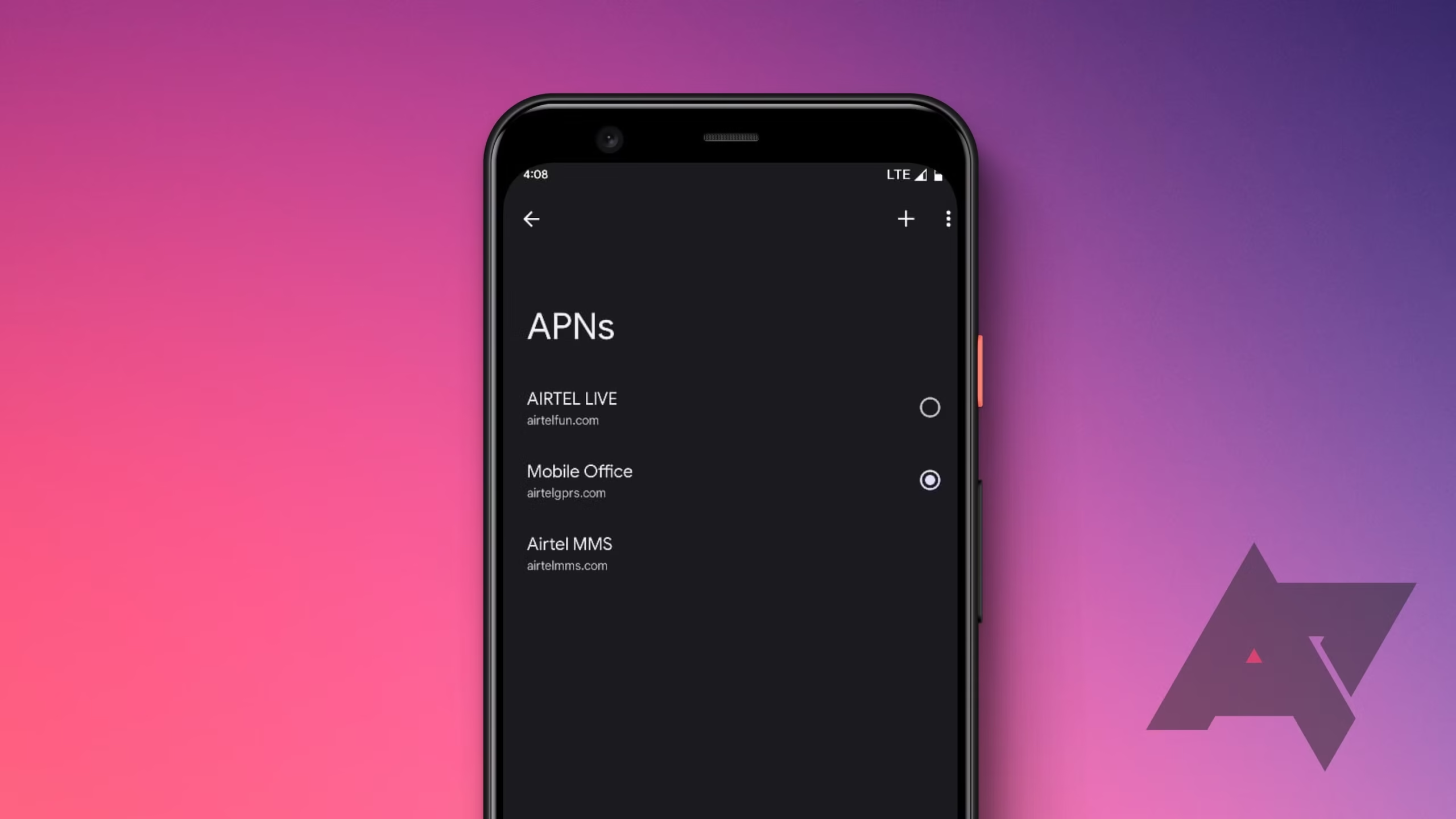
Next, look for a section called “Mobile Network” or “Cellular Network”. Inside this menu, you should find the “Access Point Names” option. Tap on it, and you will be directed to the APN settings page where you can view the existing APN profiles.
To set up a new custom APN, you will need to tap on the “Add” or “+” icon, usually located at the top right corner of the screen. This action allows you to enter your custom APN details. The required fields typically include the Name, APN, Username, Password, MMSC, and others. Fill these fields with the specific information provided by your mobile carrier. Ensure that all provided details are accurate, as incorrect information can impede internet connectivity.
After entering the details, save your settings by selecting the “Save” option, usually found in the menu. Once saved, select the new APN profile you just created to activate it. Your device may need to restart to apply the changes fully. In this way, your Android device should now be set up to utilize the custom APN settings correctly, enhancing your overall mobile internet experience.
Steps to Set Up Custom APN on iPhone Devices
Custom Access Point Name (APN) settings are crucial for enabling cellular data services on your iPhone. Follow these detailed steps to successfully set up your custom APN configuration:
First, ensure that your iPhone is connected to a Wi-Fi network. This helps avoid any reliance on cellular data, which may not yet be operational without the correct APN settings. Launch the Settings app from your home screen.
Within the Settings menu, scroll down and select the Cellular option. On this page, tap on Cellular Data Network. If prompted, you may need to enter your device password or use Touch ID/Face ID for security verification.
Once you are on the Cellular Data Network page, you will find fields to input your APN settings. This is where you add the necessary information provided by your carrier. The important fields typically include APN, Username, Password, MMSC, MMS Proxy, and MMS Max Message Size. Make sure to enter the information accurately, as any mistake may result in connectivity issues.
After inputting all required fields, return to the previous menu by tapping Cellular. It is essential to restart your device to apply the new APN settings. Simply turn off your iPhone, wait a few seconds, and then turn it back on.
Finally, to test your new custom APN configuration, try accessing a website using cellular data. If successful, your APN setup is complete. If you encounter any problems, double-check the entered settings against the APN details provided by your carrier and make any necessary adjustments.
Troubleshooting Common APN Issues
Setting up custom Access Point Names (APN) on Android and iPhone devices can enhance your mobile data experience, but various issues may arise during or after configuration. Identifying and resolving these common problems can lead to improved data connectivity and overall satisfaction with your mobile service.
One common issue users face is an inability to access mobile data after changing APN settings. If this occurs, the first step is to verify that all entries are correct; this includes the APN name, username, password, server, and MMSC, among others. An overlooked typo can obstruct connectivity, so double-checking each field for accuracy is essential.
If connectivity issues persist after confirming the entries, a useful troubleshooting tip is to revert to the default APN settings. Most devices allow users to reset to default configurations easily. This can usually be achieved via the settings menu, where you can find options to reset or delete custom APNs. Once reverted, restart your device and test the mobile data again.
Additionally, some users may encounter problems related to network availability. Ensure that your mobile carrier’s service is active in your area. You can check for outages through the carrier’s official website or customer service channels. Sometimes issues can arise due to network maintenance, which is temporary and typically resolved quickly.
Lastly, if the problems continue, consider reaching out to your service provider’s customer support. They can provide insights specific to your account or service plan that may affect APN settings. They may also offer alternative configurations or troubleshooting protocols tailored to your device and usage patterns.
Testing Your APN Configuration
Once you have set up your custom Access Point Name (APN) on your Android or iPhone device, it is essential to test the configuration to ensure that it operates effectively. A successful APN configuration is pivotal for accessing data and other network services provided by your mobile carrier. There are several methods to verify the functionality of your APN settings.
First, begin by checking your internet connectivity. Open your web browser and try to access various websites. If pages load quickly and without issue, your APN settings are likely configured correctly. Additionally, consider testing different applications that require internet access, such as social media or streaming apps. These tests will help affirm that the data connection is reliable and meets your expectations.
Another effective method to evaluate your APN configuration is to conduct a speed test. There are numerous applications and online tools available that allow you to measure your internet speed. If your download and upload speeds are consistent with what your mobile plan offers, this indicates that your APN configuration is successful. Keep in mind that actual speeds may vary based on various factors such as network congestion or location.
It is also advisable to review your mobile data settings if you encounter issues. Sometimes, issues with your APN can manifest as mobile data being disabled or limited. Ensure that mobile data is turned on, and check to see if your device shows a data connection indicator, signifying that it is currently connected to the internet.
By following these testing methods, you can confidently ascertain whether your custom APN configuration is functioning as intended, thus optimizing your mobile internet experience.
Additional Resources for APN Settings
For users seeking to delve deeper into the specifics of Access Point Name (APN) settings, various online resources can provide invaluable assistance. These resources include official carrier websites, dedicated forums, and comprehensive troubleshooting guides. The following sections outline some recommended platforms where users can uncover more detailed information regarding APN configurations.
Starting with carrier websites, these platforms often host extensive documentation concerning their APN settings. Users can typically find specific guides tailored to various devices, including setup instructions, common troubleshooting tips, and frequently asked questions. This ensures that users can connect to the network with optimal settings specific to their service provider, which is crucial for ensuring seamless connectivity.
Additionally, technology forums such as XDA Developers or Android Central present a space where users discuss their experiences and share solutions. These forums are particularly beneficial for users who may encounter unique issues or errors not widely documented elsewhere. Engaging in these discussions can lead to anecdotal insights, troubleshooting methods, and customized APN settings that may enhance network performance.
For further assistance, users can consult troubleshooting guides available online. Websites featuring technical support often offer step-by-step approaches to resolving APN-related issues. Such guides can assist users with identifying misconfigurations, detecting compatibility issues, and troubleshooting connectivity problems. This kind of resource is essential for maintaining reliable mobile internet access.
In conclusion, the journey to mastering APN configurations does not end with a basic tutorial. Leveraging these additional resources will empower users to fully understand their connectivity options and optimize their mobile data experience.
Conclusion and Final Thoughts
In this tutorial, we have explored the significance of setting up a Custom Access Point Name (APN) for both Android and iPhone devices. The APN settings are crucial for ensuring that your mobile device connects seamlessly to the internet and can send and receive multimedia messages. Moreover, having a properly configured APN can enhance your device’s performance, allowing you to enjoy reliable mobile data connectivity and optimized browsing experience.
During our discussion, we highlighted the step-by-step process of accessing the APN settings on both platforms, provided the necessary information required for input, and emphasized the importance of verifying the details before saving changes. It is essential to be precise when entering the APN values, as inaccuracies can lead to connectivity issues. Users should be aware that these settings might vary based on their mobile carrier, and they should check for the correct information accordingly.
If you encounter challenges during the setup process or if the internet connectivity does not function as expected even after proper configuration, do not hesitate to reach out for assistance. Many online resources, including forums and customer service representatives from your service provider, can offer support and guidance. A properly functioning APN is vital for a seamless mobile experience, making it imperative to dedicate the time and effort to get it right.
By following the steps outlined in this tutorial, you can ensure that your device is set up optimally for data use. We encourage you to revisit this guide whenever needed and share it with others who may benefit from clearer mobile connectivity. Your mobile device’s performance largely depends on the proper configuration of APN settings, impacting your overall experience significantly.