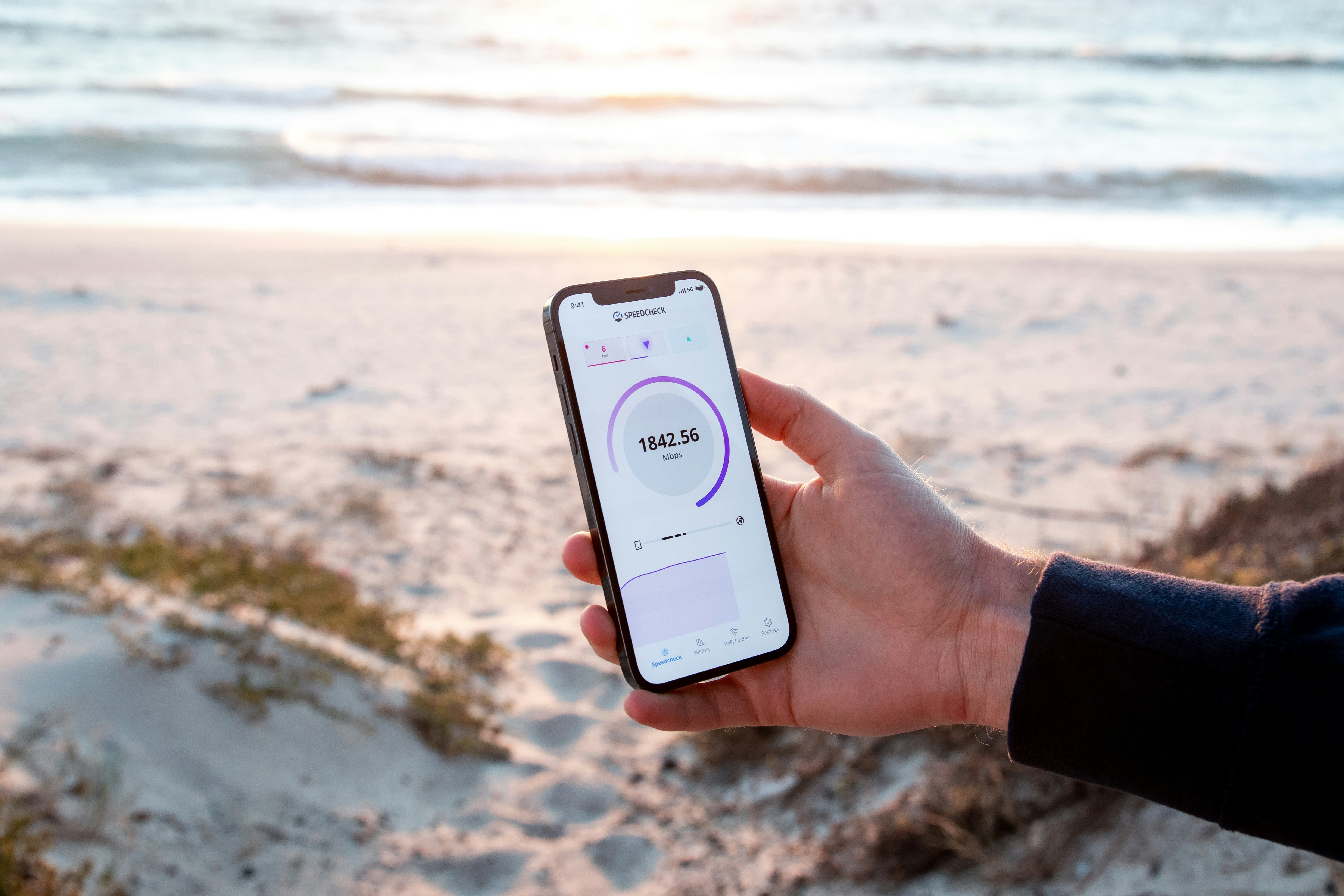

Understanding APN Settings
Access Point Names (APNs) play a crucial role in mobile data connectivity, functioning as a gateway between a cellular network and the internet. Each APN is a defined path that enables your mobile device to access the internet through a specific carrier, making it an essential part of mobile communication. Configuring APN settings correctly ensures that your device connects seamlessly to data services, allowing you to enjoy uninterrupted browsing, streaming, and other online activities.
When a mobile device connects to a cellular network, it uses the APN as a bridge to establish a connection to the internet. Incorrect APN settings can result in various connectivity issues, such as the inability to access mobile data or send MMS messages. Therefore, it is vital to have the correct APN settings, especially if you switch carriers or travel to a different region. Improper configuration may lead to slow network speeds, dropped connections, or even complete lack of service, preventing users from utilizing their mobile devices effectively.
The importance of APN settings extends beyond mere connectivity; it directly influences the overall network performance. With optimized APN configurations, users can experience enhanced download and upload speeds, leading to a smoother online experience. Moreover, certain configurations may be tailored to specific applications or services, optimizing data transmission and reducing latency. Understanding how to manage these settings will empower users to take control of their mobile internet experience.
In summary, having the correct APN settings is fundamental for ensuring reliable and fast mobile data connectivity. This understanding of APN importance sets the foundation for better network performance, allowing users to fully leverage the capabilities of their Samsung Galaxy devices.
Benefits of Proper APN Configuration
Configuring the Access Point Name (APN) settings correctly on a Samsung Galaxy device can significantly enhance the overall network experience. One of the primary advantages of proper APN configuration is improved data speed. APNs serve as gatekeepers, directing mobile data traffic efficiently, which can lead to faster download and upload speeds. When the APN settings align with your mobile carrier’s specifications, the device can effectively communicate with the network, resulting in seamless connectivity.
Another crucial benefit of proper APN configuration is better overall connectivity. This includes not only mobile data but also stability during voice calls and SMS services. With the right settings, users can establish more reliable connections, reducing dropped calls and enhancing the quality of communication. Furthermore, it allows users to take full advantage of their carrier’s network capabilities, maximizing the device’s potential.
The browsing experience is also markedly enhanced with appropriate APN settings. Users can enjoy faster loading times for web pages, improved app performance, and reduced latency. This is particularly important for online activities, such as streaming videos and playing online games, where high-speed connectivity is essential. A well-configured APN can significantly minimize buffering and lag, elevating the user’s digital experience.
Moreover, correct APN setup positively impacts the functionality of multimedia messaging services (MMS). Users often face challenges in sending and receiving multimedia messages when APN settings are misconfigured. With proper adjustments, users can seamlessly share images, videos, and other content via MMS, thereby enhancing communication options. In essence, the right APN configuration is a fundamental aspect of optimizing network speed and functionality on Samsung Galaxy devices.
Understanding the Components of APN Settings
Access Point Name (APN) settings are critical for mobile devices to connect to the internet using the cellular network. They serve as a bridge between the mobile carrier and the device, facilitating communication and data transfer. Several components constitute APN settings, each playing a vital role in establishing this connection.
First and foremost, the APN name is an essential identifier that distinguishes the access point you are utilizing. This name is recognized by the mobile carrier and must align with their configurations to ensure proper connectivity. Next, the APN type specifies the kind of data traffic allowed through this access point. This could include options such as default, mms, or supl, among others, defining the specific services that can be accessed via the network.
Components like the proxy and port settings are also integral. The proxy setting acts as an intermediary between your device and the internet, enabling or restricting certain data flows based on the carrier’s policies. The port number assists in directing requests to the appropriate locations, maintaining the efficiency of data transmission. Furthermore, the username and password fields are often used for authentication purposes, ensuring that only authorized users can access the network services.
Lastly, the server parameter specifies the destination server for the data requests. All these components harmoniously work together to enable a seamless internet experience on your device. Each setting must be correctly configured, as mismatches can lead to connectivity issues, resulting in slower network speeds or a complete inability to access data services. Understanding these facets of APN settings is crucial for optimizing your device’s performance in a mobile network environment.
Default APN Settings for Samsung Galaxy Devices
For Samsung Galaxy devices, accessing the default Access Point Name (APN) settings is crucial, as it impacts network speed and connectivity. It is essential for users to configure their APN settings according to their mobile carriers to maximize their device’s performance. Below are the default APN settings for several prominent carriers.
AT&T:
– Name: AT&T
– APN: phone
Verizon:
– Name: Verizon
– APN: vzwinternet
T-Mobile:
– Name: T-Mobile
– APN: fast.t-mobile.com
Sprint:
– Name: Sprint
– APN: sprint.connect
To access these settings on your Samsung Galaxy device, navigate to the Settings menu. From there, select Connections, followed by Mobile networks, and then tap on Access Point Names. Here, you can view the existing APNs or add new ones to align with your carrier’s specifications. To add a new APN, tap on the option to add a new access point, and fill in the given fields with the corresponding values listed above.
When updating or creating an APN, it’s important to ensure that the settings utilized are accurate and correspond to your service provider, as incorrect values can lead to connectivity issues or degraded network performance. Make sure to save your changes after inputting the appropriate settings.
Steps to Configure APN on Samsung Galaxy
Configuring the Access Point Name (APN) settings on your Samsung Galaxy device is crucial for ensuring optimal network connectivity and speed. Below is a step-by-step guide to help you manually adjust these settings.
1. **Access Settings**: Start by unlocking your Samsung Galaxy device. Locate the “Settings” app, which can typically be found on your home screen or in the app drawer. It is represented by a gear icon.
2. **Select Connections**: In the Settings menu, scroll down and find the “Connections” option. Tap on it to proceed. This section contains various features related to network connectivity, including Wi-Fi, Bluetooth, and mobile networks.
3. **Mobile Networks**: Within the Connections menu, select “Mobile networks.” This will carry you to the settings that manage cellular connections and APN configurations.
4. **Access Point Names**: Look for the option labeled “Access Point Names” (APN). Tapping on this option will display a list of existing APNs configured on your device. If necessary, you can add a new APN or modify an existing one.
5. **Add New APN**: To create a new APN, tap on the “Add” icon (usually represented as a plus sign) located at the top right corner of the screen. Here, you will see several fields that need to be filled out with specific information provided by your mobile carrier.
6. **Enter APN Details**: Fill in the necessary details such as the Name, APN, Username, Password, and MMSC as provided by your network carrier. Ensure that you double-check each entry for accuracy to prevent connectivity issues.
7. **Save Changes**: After inputting all the required information, tap on the three dots in the upper right corner, and select “Save”. Your new APN will now appear in the list, allowing you to select it for use.
8. **Restart Device**: To finalize the configuration process, it is advisable to restart your device. This ensures that the new APN settings are fully implemented and ready for use.
Common APN Settings Issues and Solutions
Configuring Access Point Name (APN) settings is critical in ensuring that Samsung Galaxy users enjoy optimal network performance. However, users often encounter various issues during the configuration process. One prevalent issue is experiencing slow internet speeds. This may stem from incorrect APN settings or using outdated data plans. By double-checking the APN configurations, users can troubleshoot and rectify issues related to slow browsing. It is advisable to ensure that the APN type includes both ‘default’ and ‘supl’ for standard internet access.
Another common problem that users face is the inability to send Multimedia Messaging Service (MMS) messages. This can occur if the APN settings do not include the specific configuration required for MMS. In such cases, it is pivotal for users to ensure that the correct settings for the MMS APN are input, including the MMSC URL, MMS Proxy, and the MMS Port. These identifiers must match the specifications provided by the mobile network operator.
Furthermore, some users might report intermittent connectivity issues even after setting up the APN correctly. Such disruptions can be a result of network coverage problems or device settings. It is advisable for users to restart their devices and verify that the mobile data is enabled. Additionally, ensuring that their device is not in airplane mode will help re-establish a strong network connection.
In some cases, users may erroneously find themselves unable to connect to mobile data entirely. For this situation, it is prudent to reset the network settings on the Samsung Galaxy device. This action will restore default configurations, effectively clearing any conflicting settings that may have been inadvertently created during the APN setup process. Users should also confirm that their data plan is active and covers the necessary features like internet access and MMS.
Advanced APN Settings for Optimizing Network Speed
To further enhance the performance of your Samsung device, understanding and adjusting advanced Access Point Name (APN) settings can be beneficial. Among the configurations available, two critical settings are the ‘APN protocol’ and ‘APN roaming protocol’. Modifying these settings can help users achieve greater network speed and reliability.
The ‘APN protocol’ refers to the communication method used between your device and the mobile network. This can generally be set to IPv4, IPv6, or both, depending on your carrier’s requirements and compatibility with your device. Many users find that setting the APN protocol to IPv4 yields more consistent performance, especially in areas with limited IPv6 support. However, if your network and device are compatible and fully support IPv6, switching to this protocol may provide enhanced data speed and lower latency.
Similarly, the ‘APN roaming protocol’ is important for users who travel frequently or use their devices in various locations. This setting dictates how your device connects to available networks while roaming. Aligning this value with your APN protocol can minimize data disruptions and improve speeds when you are in a non-native network environment. By setting both protocols to IPv4 or allowing dual-stacks, users may experience improved speed and connectivity. Tech-savvy users may wish to experiment with these settings to find the most optimal configuration for their specific usage patterns.
In addition to these protocols, adjusting the APN type and ensuring the correct settings for authentication can also impact performance. Users should be cautious while modifying these settings, as incorrect configurations could lead to connectivity issues. Documenting original settings prior to making changes can facilitate troubleshooting if necessary.
Testing Your Network Speed After APN Configuration
Once you have adjusted your APN settings on your Samsung Galaxy, it is essential to evaluate the impact of these changes on your network speed. Testing your network speed will help you determine whether the new configuration has optimized your internet connectivity. A variety of reliable methods exist for conducting speed tests, and utilizing these tools can provide you with clear insights into your data performance.
One of the most popular applications for testing network speed is Ookla Speedtest. This widely used app is available for download on the Google Play Store and provides a user-friendly interface to measure upload and download speeds as well as ping times. To conduct a test, simply launch the app, tap the “Go” button, and wait for the results to populate on your screen. This app is recognized for its accuracy and user base, making it a reputable choice.
Another notable option is FAST.com, offered by Netflix. This web-based service allows users to assess their network speed with minimal effort. Access it via your web browser, and the site will automatically begin the speed test once opened. The results provide instantaneous feedback about your download speeds, making it a quick and accessible tool.
After running a speed test, it is advisable to conduct multiple tests at different times of the day. This provides a more comprehensive understanding of your network performance. Additionally, various external factors such as network congestion, distance from the cell tower, and device performance can influence results. By assessing network speed before and after changing your APN settings, you can better understand the effectiveness of your adjustments and make further refinements if necessary.
Conclusion and Best Practices
In conclusion, the importance of APN settings for Samsung Galaxy users cannot be overstated. These settings play a crucial role in determining how devices connect to mobile networks, influencing data performance, speed, and accessibility to various online services. An incorrectly configured APN can lead to slow internet speeds, loss of data connectivity, or problems with sending and receiving multimedia messages.
To ensure optimal network performance, it is advisable for users to regularly review and update their APN settings. Carriers often update their recommended APN configurations, and staying informed about these changes can enhance the overall user experience. Samsung Galaxy users should check their device settings periodically, especially after changing carriers or experiencing connectivity issues. This proactive approach can prevent potential frustrations associated with poor network performance.
Furthermore, employing best practices such as backing up current APN settings before making any changes can safeguard against unintended disruptions. Users should also familiarize themselves with the correct APN settings provided by their mobile carrier, including internet and MMS configurations. Should any issues arise, referencing these details can expedite troubleshooting and reinstating full connectivity.
Additionally, if users notice significant degradation in their network performance, it could be beneficial to reset their network settings to factory defaults, followed by reconfiguration of the desired APN. This procedure can often resolve lingering issues that ordinary adjustments cannot. By adhering to these best practices and remaining diligent about their APN configurations, users can enjoy better network speed and reliability with their Samsung Galaxy devices.