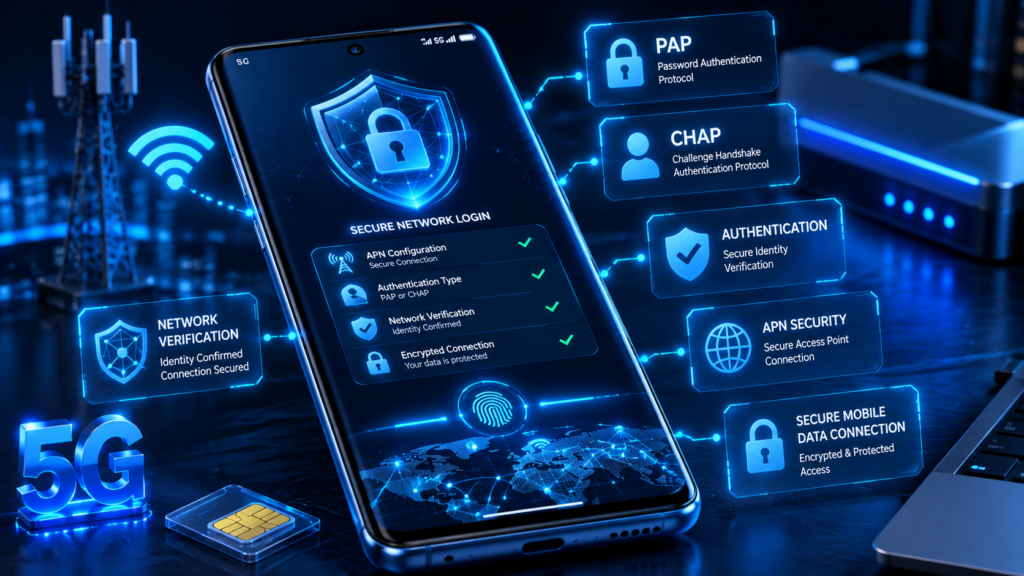
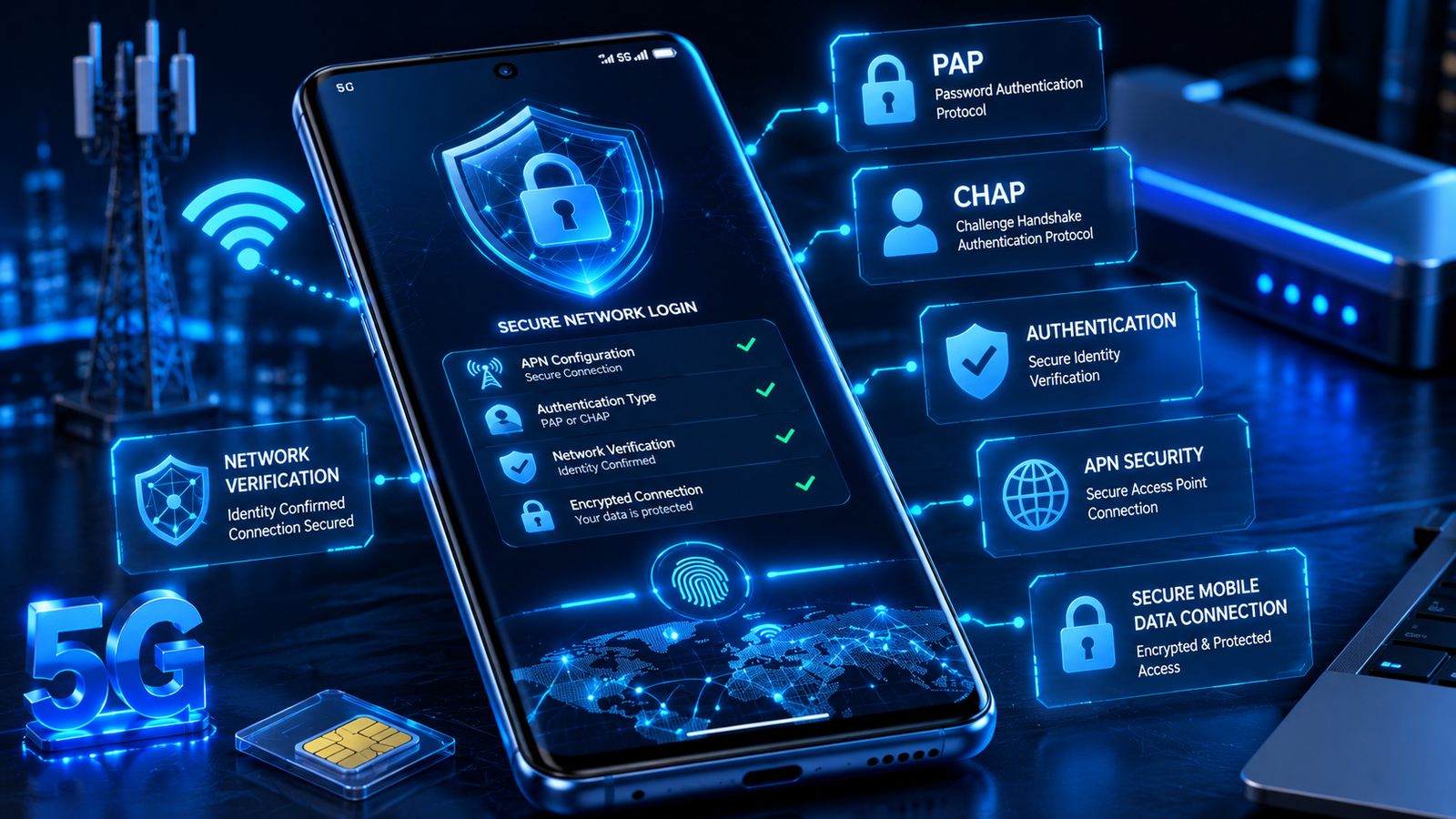
If you have ever configured mobile internet manually, you have probably noticed an option called APN Authentication Type. Many users leave this field blank because they do not know its purpose. However, choosing the correct authentication type can be important for establishing a secure and stable connection between your smartphone and your mobile carrier.
This complete guide explains APN Authentication Type, how it works, the different authentication methods available, and when you should use each option. Whether you own an Android phone or an iPhone, this article will help you understand one of the most misunderstood APN settings.
What is APN Authentication Type?
APN Authentication Type is a security method that verifies your smartphone before allowing it to connect to your mobile carrier’s internet network. When your phone requests mobile data access, the carrier checks the authentication information to confirm that the connection is valid.
Fortunately, many modern mobile carriers automatically configure this setting. However, some carriers still require users to select a specific authentication method when manually creating APN settings.
Without the correct authentication type, your phone may fail to connect to mobile data even if every other APN field is entered correctly.
Why is APN Authentication Type Important?
The APN Authentication Type helps protect carrier networks from unauthorized access. It also ensures that only approved devices can use specific APN profiles.
Moreover, selecting the correct authentication type can improve connection reliability and prevent mobile data errors.
Incorrect authentication settings may cause:
- Mobile data not working
- No internet connection
- Frequent disconnections
- Authentication failed errors
- MMS sending failures
- Slow internet performance
Therefore, it is always recommended to use the authentication type suggested by your mobile carrier.
Types of APN Authentication
Most Android devices offer four authentication options.
None
Selecting None means your phone does not send authentication credentials. Most modern carriers use this option because authentication happens automatically through the SIM card.
PAP (Password Authentication Protocol)
PAP is one of the oldest authentication methods. It sends the username and password to the carrier for verification before allowing internet access.
Although PAP is simple and widely supported, it provides less security than newer authentication methods.
CHAP (Challenge Handshake Authentication Protocol)
CHAP is a more secure authentication method. Instead of sending your password directly, it uses an encrypted challenge-response process to verify your identity.
As a result, CHAP offers better security than PAP and is commonly recommended when supported by the carrier.
PAP or CHAP
Some smartphones allow selecting PAP or CHAP. This option lets the carrier choose the authentication method automatically.
For most users, this is the safest choice when the carrier does not specify a particular authentication type.
How to Change APN Authentication Type on Android
If your mobile carrier requires a specific authentication method, you can easily update the APN Authentication Type on your Android device.
Follow these simple steps:
- Open Settings.
- Tap Network & Internet.
- Select Mobile Network.
- Tap Access Point Names (APN).
- Open your current APN profile or create a new one.
- Scroll down to Authentication Type.
- Select None, PAP, CHAP, or PAP or CHAP as recommended by your carrier.
- Save the APN profile.
- Restart your smartphone.
After restarting, enable mobile data and verify that your internet connection is working correctly.
How to Configure APN Authentication Type on iPhone
Unlike Android devices, iPhones usually manage APN authentication automatically through the carrier settings. Most users do not see an Authentication Type option because Apple hides advanced APN settings unless the carrier supports manual configuration.
If manual APN editing is available:
- Open Settings.
- Tap Cellular.
- Select Cellular Data Network.
- Enter the APN values provided by your carrier.
- Save the settings if prompted.
- Restart your iPhone.
In most cases, no additional authentication configuration is required on iOS devices.
Which APN Authentication Type Should You Choose?
Choosing the correct APN Authentication Type depends entirely on your mobile carrier.
General recommendations include:
- None – Best for most modern mobile carriers.
- PAP – Use only if your carrier specifically requires PAP authentication.
- CHAP – Recommended when supported because it offers better security.
- PAP or CHAP – A good choice if your carrier accepts either authentication method.
Therefore, always check your carrier’s official APN settings before changing this option.
Common Problems Related to APN Authentication Type
Incorrect authentication settings can cause several connectivity issues.
Common problems include:
- Mobile data connected but no internet.
- Unable to save APN settings.
- Authentication failed message.
- Slow browsing speeds.
- Apps unable to access the internet.
- MMS messages not sending.
- Frequent network disconnections.
Fortunately, most of these issues can be resolved by selecting the correct authentication type and restarting your device.
Tips for Better Mobile Data Performance
Besides choosing the correct APN Authentication Type, you can improve your connection by following these recommendations:
- Restart your phone after changing APN settings.
- Update your device to the latest software version.
- Remove duplicate APN profiles.
- Use the carrier’s recommended APN values.
- Keep 5G or LTE enabled whenever available.
- Reset network settings if problems continue.
- Check whether your SIM card is activated correctly.
Furthermore, using the latest carrier settings helps maintain stable mobile internet performance.
Frequently Asked Questions (FAQs)
What is APN Authentication Type?
APN Authentication Type is a security method that verifies your device before it connects to your mobile carrier’s internet network.
Which APN Authentication Type is best?
For most users, None or PAP or CHAP works best. However, always follow your mobile carrier’s recommendations.
Does APN Authentication Type affect internet speed?
No. It does not directly increase internet speed. Instead, it ensures your device connects correctly to the carrier’s network.
What happens if I choose the wrong Authentication Type?
Using the wrong authentication method may prevent mobile data, MMS, or internet services from working correctly.
Should I leave APN Authentication Type blank?
If your carrier instructs you to leave it blank or select None, you should follow those instructions.
For more information about Android Access Point Name (APN) settings, visit Android Open Source Project – APN and Carrier Configuration.