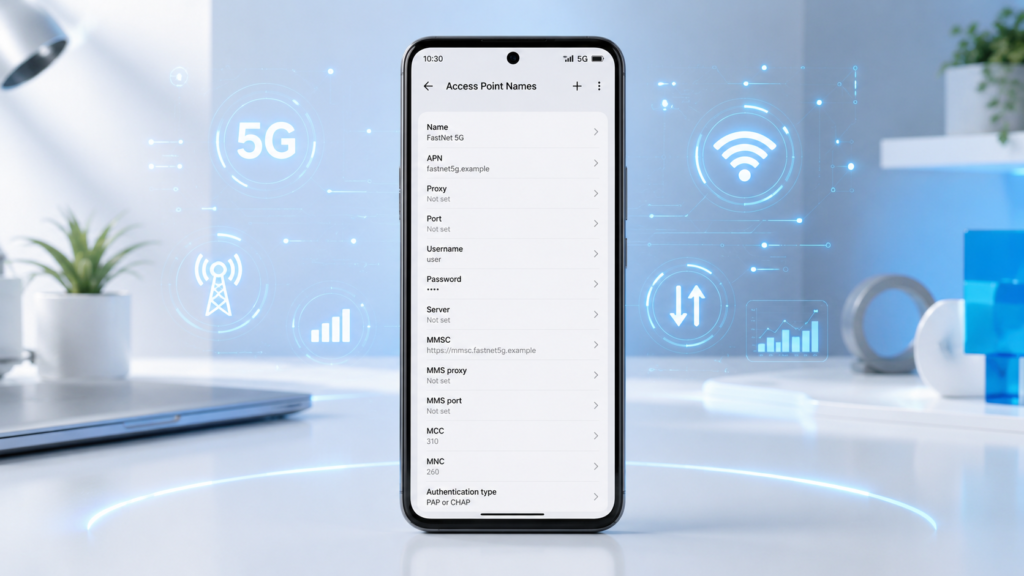
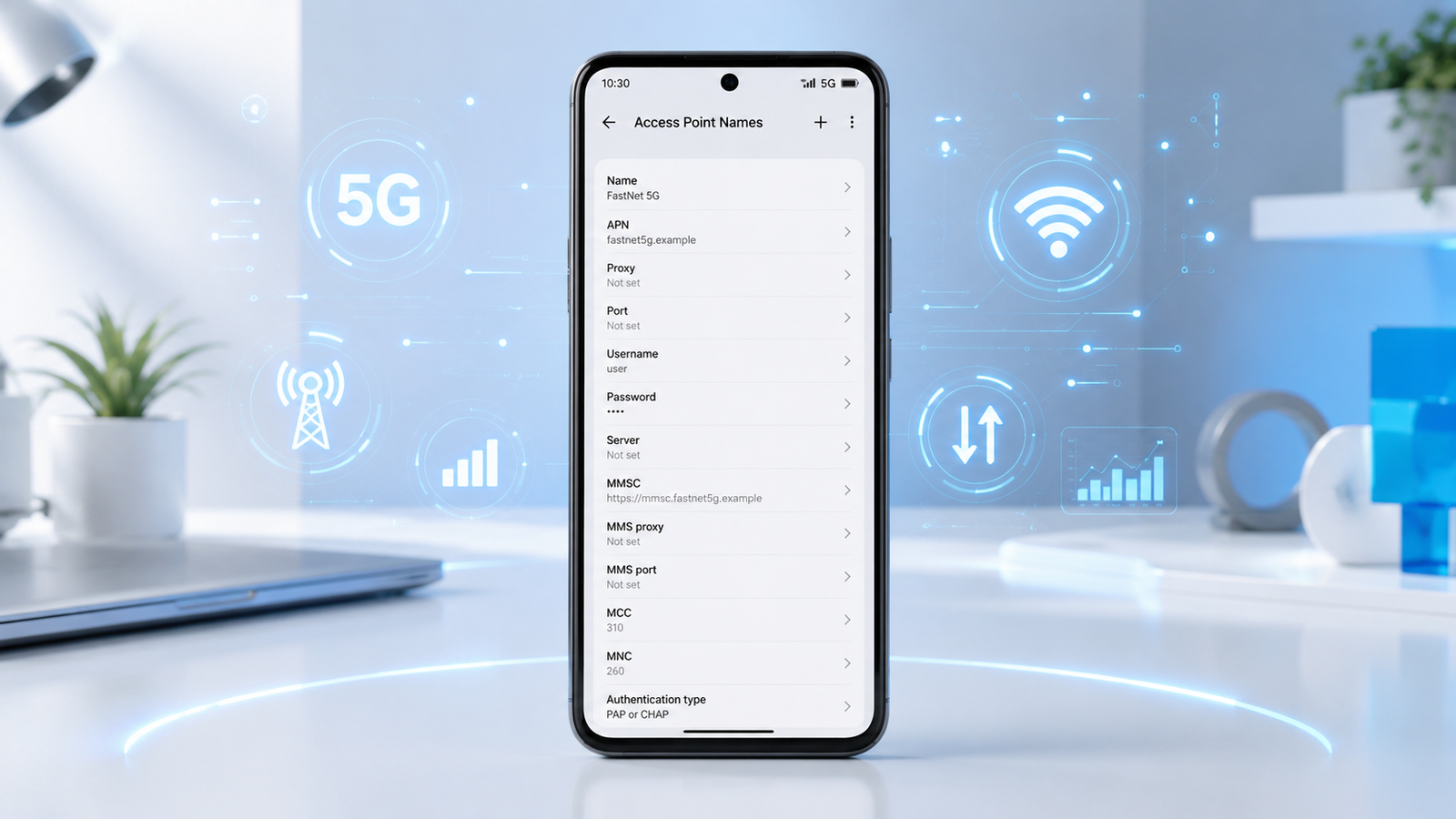
Google Pixel smartphones are known for their clean Android experience, fast software updates, and excellent 5G connectivity. In most situations, Pixel devices automatically download the correct Access Point Name (APN) settings after you insert a SIM card. However, there are times when you may need to manually configure the APN to fix mobile data problems, improve internet connectivity, or enable MMS services.
This guide explains how to Configure APN on Google Pixel Phones, provides step-by-step instructions, and shares troubleshooting tips to help you restore a stable mobile internet connection.
What is an APN?
An Access Point Name (APN) is a network configuration that allows your smartphone to connect to your mobile carrier’s internet services. Every carrier uses its own APN settings, which include information such as the APN name, protocol, authentication type, and MMS configuration.
Fortunately, Android automatically applies these settings in most cases. However, if the configuration is missing or incorrect, you may experience mobile data problems.
Why Configure APN on Google Pixel Phones?
There are several situations where manually updating APN settings becomes necessary.
You may need to configure the APN if:
- Mobile data is not working.
- 5G or LTE is unavailable.
- MMS messages fail to send or receive.
- Internet speeds are unusually slow.
- You recently switched to a new carrier.
- You inserted a new SIM card.
- You are using an unlocked Google Pixel phone.
Moreover, manually entering the correct APN settings often resolves many common connectivity issues without requiring technical support.
How to Open APN Settings on Google Pixel Phones
Google Pixel devices make APN management simple.
Follow these steps:
- Open Settings.
- Tap Network & Internet.
- Select SIMs.
- Tap your active SIM card.
- Scroll down and select Access Point Names.
- Choose an existing APN or tap the + icon to create a new one.
You are now ready to enter the APN values provided by your mobile carrier.
Example APN Configuration
Although APN settings differ between carriers, most configurations include the following fields.
| Setting | Example |
|---|---|
| Name | Carrier Name |
| APN | Carrier APN |
| Proxy | Not Set |
| Port | Not Set |
| Username | Not Set |
| Password | Not Set |
| Authentication Type | None |
| APN Type | default,supl,mms |
| APN Protocol | IPv4/IPv6 |
| Roaming Protocol | IPv4/IPv6 |
| Bearer | Unspecified |
Always use the official APN values supplied by your carrier instead of copying settings from unofficial sources.
How to Save the APN
After entering every value correctly:
- Tap the three-dot menu.
- Select Save.
- Return to the APN list.
- Select the newly created APN profile.
- Restart your Google Pixel phone.
Once the device reconnects to the network, enable mobile data and test your internet connection.
Common APN Problems on Google Pixel Phones
Even after configuring the correct APN, some users may still experience network-related issues. Fortunately, most of these problems can be resolved with a few simple troubleshooting steps.
Common APN-related problems include:
- Mobile data connected but no internet.
- 5G network not appearing.
- Slow browsing or download speeds.
- MMS messages not sending or receiving.
- APN settings not saving.
- Frequent mobile data disconnections.
- Internet working only on Wi-Fi.
Moreover, verifying every APN field carefully often resolves these issues without additional support.
How to Reset APN Settings on Google Pixel Phones
If you accidentally enter incorrect APN values, you can quickly restore the default configuration.
Follow these steps:
- Open Settings.
- Tap Network & Internet.
- Select SIMs.
- Tap your active SIM.
- Open Access Point Names.
- Tap the three-dot menu.
- Select Reset to Default.
- Restart your Google Pixel phone.
After restarting, your carrier may automatically restore the official APN settings.
Tips to Improve Mobile Internet Performance
Besides configuring the correct APN, several additional steps can improve your mobile connection.
1. Keep Android Updated
Google regularly releases software updates that improve modem performance and network compatibility.
2. Enable 5G
If your carrier supports 5G, make sure your preferred network type is set to 5G (Recommended).
3. Remove Duplicate APNs
Having multiple APN profiles can confuse your device. Keep only the profile recommended by your carrier.
4. Restart Your Phone
Restarting your Pixel refreshes the mobile network and applies any recent APN changes.
5. Check SIM Card Placement
A damaged or improperly inserted SIM card may prevent your phone from connecting to mobile data services.
6. Reset Network Settings
If internet issues continue, resetting network settings often resolves hidden configuration problems.
7. Verify Carrier Coverage
Sometimes the issue is related to poor signal strength rather than incorrect APN settings. Check whether your carrier has reliable coverage in your area.
Frequently Asked Questions (FAQs)
Do Google Pixel phones configure APN settings automatically?
Yes. Most Google Pixel devices automatically download APN settings after a SIM card is inserted.
Why is mobile data not working on my Google Pixel?
Incorrect APN settings, weak network coverage, outdated software, or SIM card issues can prevent mobile data from working properly.
Can changing APN settings improve internet speed?
Correct APN settings improve connection stability and reliability. However, they cannot increase the maximum speed provided by your mobile carrier.
Can I create multiple APN profiles?
Yes. Google Pixel phones allow multiple APN profiles, but only one should remain active at a time.
What should I do if APN settings are missing?
Contact your mobile carrier or visit its official website to obtain the latest APN configuration for your network.
Will resetting APN settings delete my personal data?
No. Resetting APN settings only restores network configuration and does not affect photos, apps, contacts, or personal files.
For official information about mobile network settings on Pixel devices, visit Google Pixel Help.