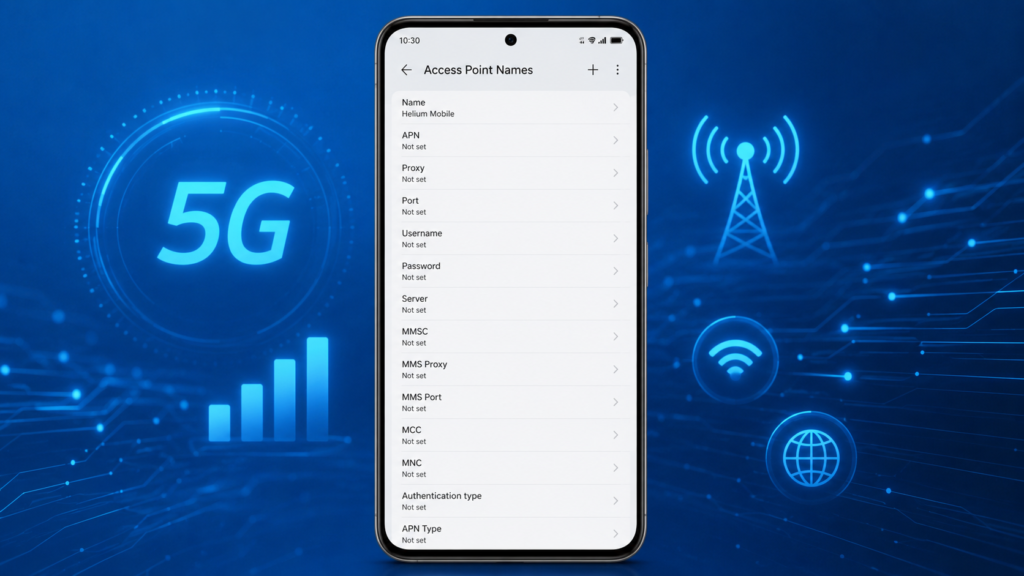
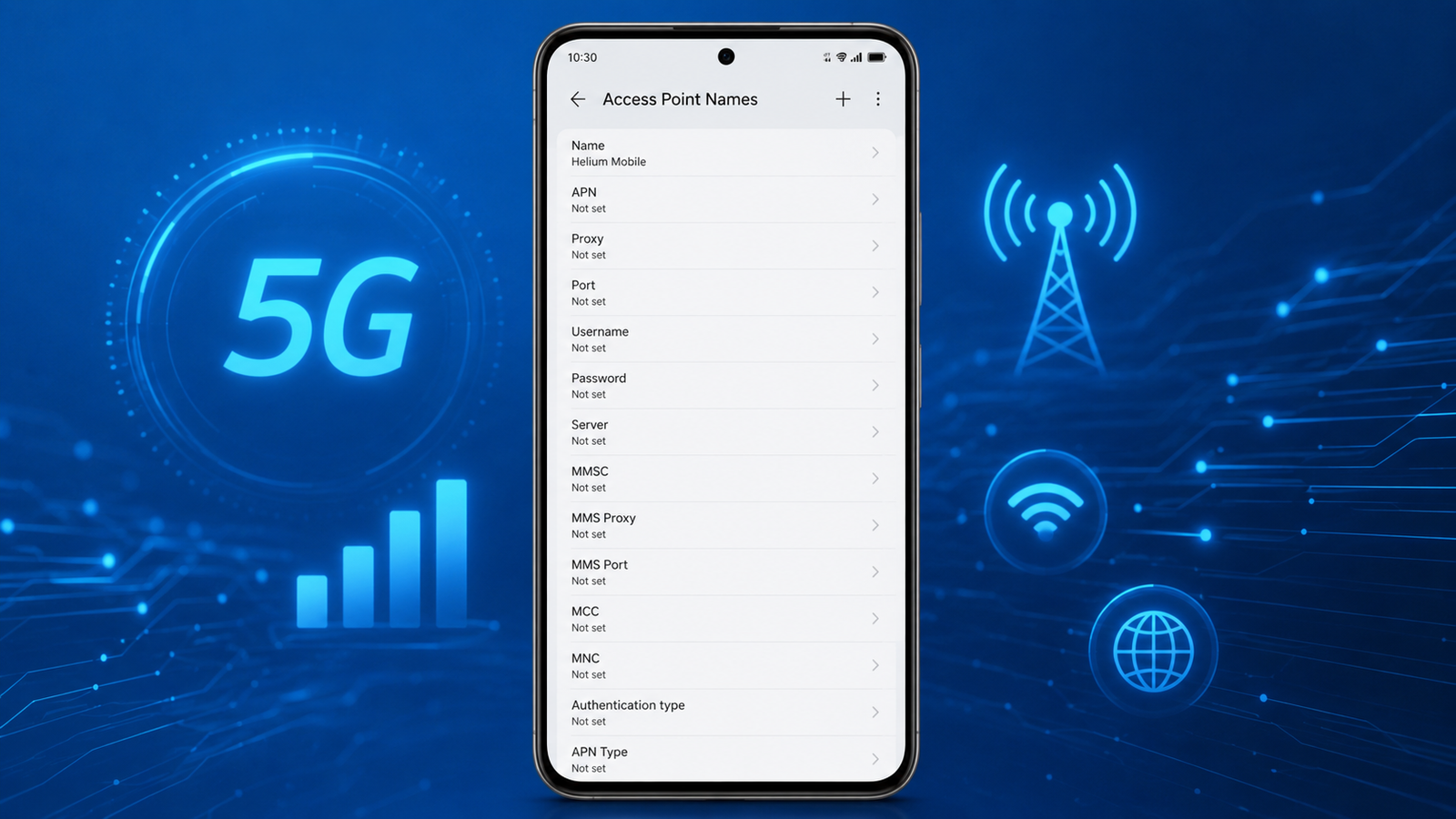
If your Helium Mobile internet is slow, mobile data is not working, or MMS messages fail to send, updating the correct Helium Mobile APN Settings can solve these problems quickly. Access Point Name (APN) settings allow your smartphone to connect properly to your mobile carrier’s internet network. Even a small mistake in these settings can prevent mobile data from working correctly.
This guide provides the latest Helium Mobile APN Settings for 2026, explains how to configure them on Android and iPhone devices, and shares useful troubleshooting tips to improve your internet speed and network stability.
What Are Helium Mobile APN Settings?
Helium Mobile APN Settings are the network configuration values your smartphone uses to connect to Helium Mobile’s internet and MMS services. These settings tell your device how to access mobile data, multimedia messaging, and other carrier services.
Fortunately, most Helium Mobile SIM cards configure APN settings automatically. However, if your device cannot connect to the internet or experiences poor performance, manually entering the correct APN settings may solve the problem.
Helium Mobile APN Settings 2026
Use the following APN configuration if automatic settings are unavailable.
| Setting | Value |
|---|---|
| Name | Helium Mobile |
| APN | wholesale |
| Proxy | Not Set |
| Port | Not Set |
| Username | Not Set |
| Password | Not Set |
| Server | Not Set |
| MMSC | http://wholesale.mmsmvno.com/mms/wapenc |
| MMS Proxy | Not Set |
| MMS Port | Not Set |
| MCC | 310 |
| MNC | 240 |
| Authentication Type | None |
| APN Type | default,supl,mms |
| APN Protocol | IPv4/IPv6 |
| APN Roaming Protocol | IPv4/IPv6 |
| Bearer | Unspecified |
| MVNO Type | None |
| MVNO Value | Not Set |
Always double-check every field before saving the configuration. Even one incorrect value can prevent your phone from accessing mobile data.
How to Configure Helium Mobile APN Settings on Android
Setting up the Helium Mobile APN Settings on Android takes only a few minutes.
Follow these steps:
- Open Settings.
- Tap Network & Internet.
- Select Mobile Network.
- Open Access Point Names (APN).
- Tap the + icon to create a new APN.
- Enter all values exactly as shown above.
- Save the APN profile.
- Restart your smartphone.
After restarting, enable mobile data and test your internet connection.
How to Configure Helium Mobile APN Settings on iPhone
iPhone users can also manually update APN settings if necessary.
Steps include:
- Open Settings.
- Tap Cellular.
- Select Cellular Data Network.
- Enter the recommended APN values.
- Return to the previous menu.
- Restart your iPhone.
Once the device reconnects to the network, verify that mobile data is functioning properly.
Why Are Helium Mobile APN Settings Important?
Using the correct Helium Mobile APN Settings ensures that your smartphone communicates properly with the carrier’s network. Incorrect APN values can cause slow internet speeds, failed MMS messages, poor 5G connectivity, and unstable mobile data.
Moreover, accurate APN settings help your device connect to the fastest available network automatically. This improves browsing, online gaming, video streaming, video calls, and app downloads while reducing unexpected connection problems.
Common Helium Mobile APN Problems and Solutions
If your mobile data still does not work after entering the correct APN settings, try these troubleshooting methods.
1. Restart Your Device
After saving the APN profile, restart your smartphone. This allows the new network settings to load correctly.
2. Check Mobile Data
Make sure Mobile Data is enabled. Sometimes data is accidentally turned off, preventing internet access.
3. Select the Correct APN
If multiple APNs appear on your device, select the newly created Helium Mobile APN Settings profile as the default.
4. Verify the APN Values
Even a single incorrect character can stop mobile data from working. Therefore, carefully compare every field with the recommended settings.
5. Reset Network Settings
If problems continue, reset your network settings and configure the APN again from the beginning.
6. Update Your Phone
Keeping your Android or iPhone updated ensures maximum compatibility with the latest carrier settings.
Tips to Improve Helium Mobile 5G Internet Speed
Although the correct APN settings improve connectivity, several additional tips can further enhance your internet experience.
- Restart your phone once every few days.
- Enable 5G Auto mode if your device supports it.
- Stay within strong network coverage areas.
- Install the latest software updates.
- Remove unused or duplicate APN profiles.
- Disable VPN services while testing your connection.
- Turn Airplane Mode on for 30 seconds and then turn it off.
- Check whether your current mobile plan includes 5G access.
Furthermore, using a modern 5G-compatible smartphone can significantly improve download speeds and network stability.
How to Reset Helium Mobile APN Settings
If you accidentally enter incorrect values, you can easily restore the default APN settings.
Android
- Open Settings.
- Tap Network & Internet.
- Select Mobile Network.
- Open Access Point Names.
- Tap the three-dot menu.
- Choose Reset to Default.
iPhone
- Open Settings.
- Tap General.
- Select Transfer or Reset iPhone.
- Choose Reset Network Settings.
- Restart your device.
After resetting, your carrier may automatically download the correct APN configuration.
Frequently Asked Questions (FAQs)
What is the APN for Helium Mobile?
The recommended APN is wholesale, along with the settings provided in this guide.
Why is my Helium Mobile internet slow?
Slow internet may result from incorrect APN settings, weak signal strength, network congestion, outdated software, or temporary carrier maintenance.
Can I use Helium Mobile APN Settings on Android?
Yes. The settings work on most Android smartphones, including Samsung, Google Pixel, Motorola, OnePlus, Xiaomi, and other compatible devices.
Do iPhone users need to configure APN settings?
Most iPhones receive APN settings automatically. However, manual configuration may be necessary if mobile data or MMS services are not working correctly.
Will changing APN settings increase internet speed?
Correct APN settings help your phone connect properly to the carrier’s network. Although they cannot increase the maximum speed provided by your plan, they often resolve connectivity issues and improve overall performance.
Are Helium Mobile APN Settings free to use?
Yes. Configuring APN settings is completely free and only requires entering the correct values on your smartphone.
For official network information and support, visit Helium Mobile Official Website.