Understanding APN Settings
Access Point Name (APN) settings serve as the critical link between a mobile device and the internet. These settings are integral to mobile internet connectivity, allowing users to access the internet from their smartphones, tablets, and other devices. In essence, an APN acts as a gateway that establishes the connection between the user’s mobile network and the broader internet. It comprises various configurations that dictate how a device communicates with the mobile network and how it connects to the internet.
Each mobile operator provides specific APN settings that need to be configured on users’ devices for optimal performance. These settings can include parameters like the APN itself, username, password, authentication type, and more. If these settings are incorrect or not configured at all, users may experience slow internet speeds, difficulties in sending multimedia messages, or complete failure to connect to the internet.
Furthermore, the role of APN settings is not limited to merely establishing a connection; they also influence the quality and speed of mobile internet. For instance, correct APN configuration can lead to enhanced browsing speeds and ensure seamless streaming of multimedia content. Conversely, improper adjustments can lead to slow internet or data service interruptions. Thus, understanding and configuring APN settings is essential for anyone experiencing issues with their mobile internet speeds. Knowing how to access and modify these settings allows users to troubleshoot connectivity issues effectively and ensure their devices operate optimally within their mobile network framework.
Identifying Slow Mobile Internet Issues
Experiencing slow mobile internet can be frustrating, and it often manifests in various ways that can hinder your online activities. The first signs of subpar performance are usually noticeable during routine tasks such as browsing, streaming videos, or downloading files. Users frequently report long loading times for websites, interruptions while streaming media, or stalled downloads, all indicative of insufficient internet speeds. These symptoms can arise from a multitude of issues, ranging from APN (Access Point Name) settings misconfigurations to external network factors.
To effectively diagnose whether your slow mobile internet is attributable to APN settings or other factors, it is crucial to conduct a systematic evaluation. Start by checking if the sluggish performance occurs across different applications or is confined to specific ones. If consistent issues arise across various platforms, the problem is likely network-related rather than an isolated application hiccup.
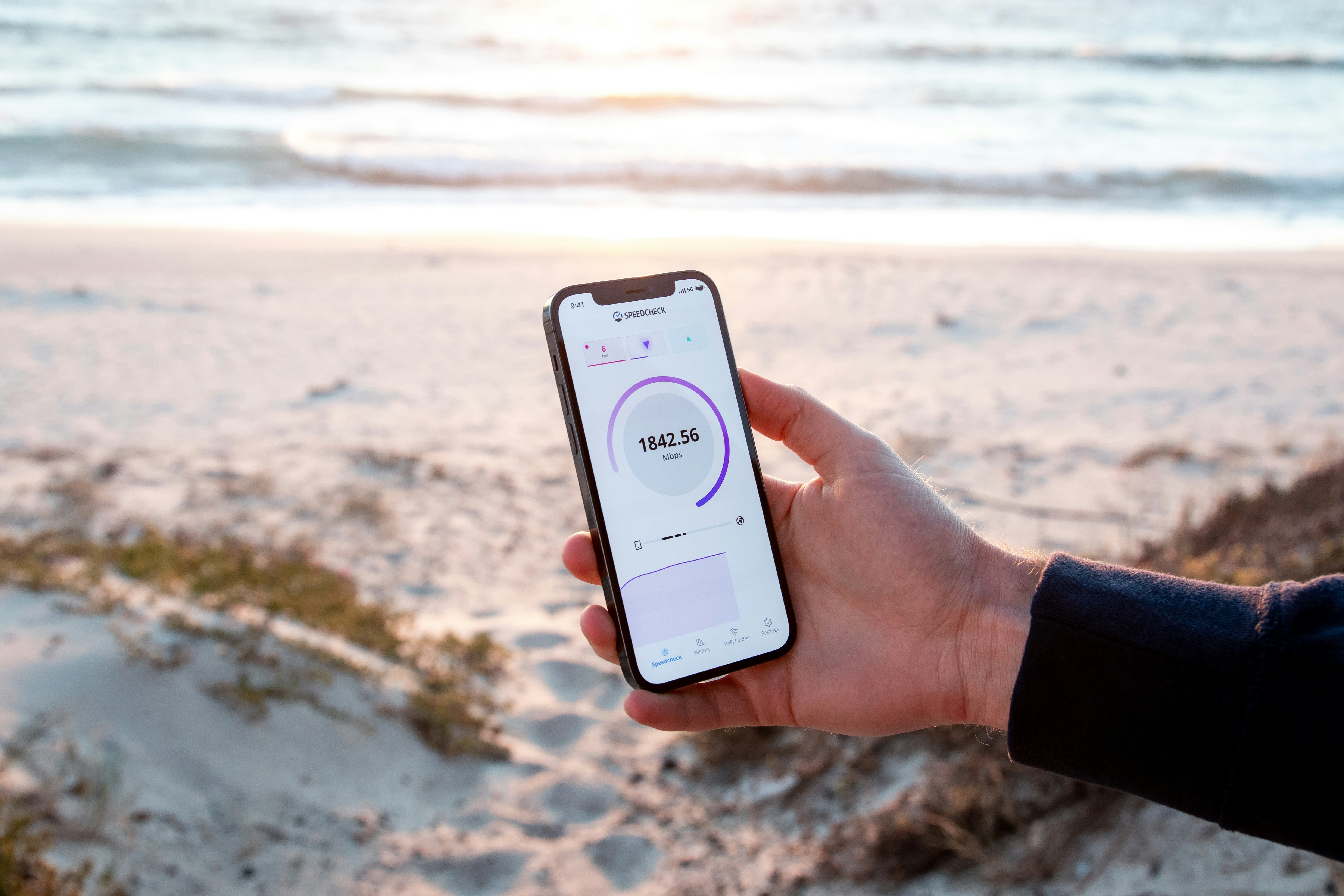
Another consideration is network congestion. During peak usage times, such as in urban areas or crowded public venues, mobile networks may become overloaded, leading to decreased performance. Testing your internet speed with a reliable speed test application can provide a clearer picture of your current connection speed and help identify if network congestion is a contributing factor.
Moreover, the hardware being used can also influence mobile internet performance. Issues may arise from an outdated device or insufficient storage space, which could impede effective browsing and connection speeds. Users should ensure their device is up to date and free of unnecessary applications that could be consuming bandwidth.
By distinguishing between potential causes of slow mobile internet, you can better determine if APN settings need adjustment or if other issues, such as network congestion or device performance, are at play.
Finding Your Carrier’s APN Settings
Access Point Names (APN) settings are critical for enabling proper mobile data connection on your device. To resolve issues related to slow mobile internet, it is essential to correctly configure these settings as per your carrier’s specifications. Finding the accurate APN settings can differ based on the mobile carrier you are subscribed to, as well as the type of device being used.
To start, the easiest way to locate your carrier’s APN settings is by visiting your carrier’s official website. Most carriers provide comprehensive guides and lists of even the most up-to-date settings tailored for various devices. Another reliable source can be the ‘Settings’ app on your smartphone or tablet, where you can typically find the APN settings under ‘Mobile Networks’ or ‘Cellular Data Network’ options.
In addition, several third-party websites and online forums compile detailed APN settings for a wide range of carriers. Websites such as apnsettings.com and phonearena.com are known for their extensive databases. Users can filter the settings by both carriers and devices, ensuring that they access the most relevant information. Before applying any settings, however, ensure that the information is up-to-date as incorrect APN configurations can lead to further connectivity issues.
Furthermore, customers can reach out to their carrier’s customer support for assistance. Technical support staff can guide you through the process or provide the necessary settings directly. Ensure you have your device model and plan details at hand to expedite the process. Following these steps diligently will empower users to find the correct APN settings, ultimately leading to enhanced mobile internet speed and reliability.
Accessing APN Settings on Android Devices
To adjust the APN settings on your Android device, begin by unlocking your phone and navigating to the settings app. Look for the option labeled “Network & Internet” or simply “Connections,” depending on your device’s manufacturer. Tap on it to enter the next menu.
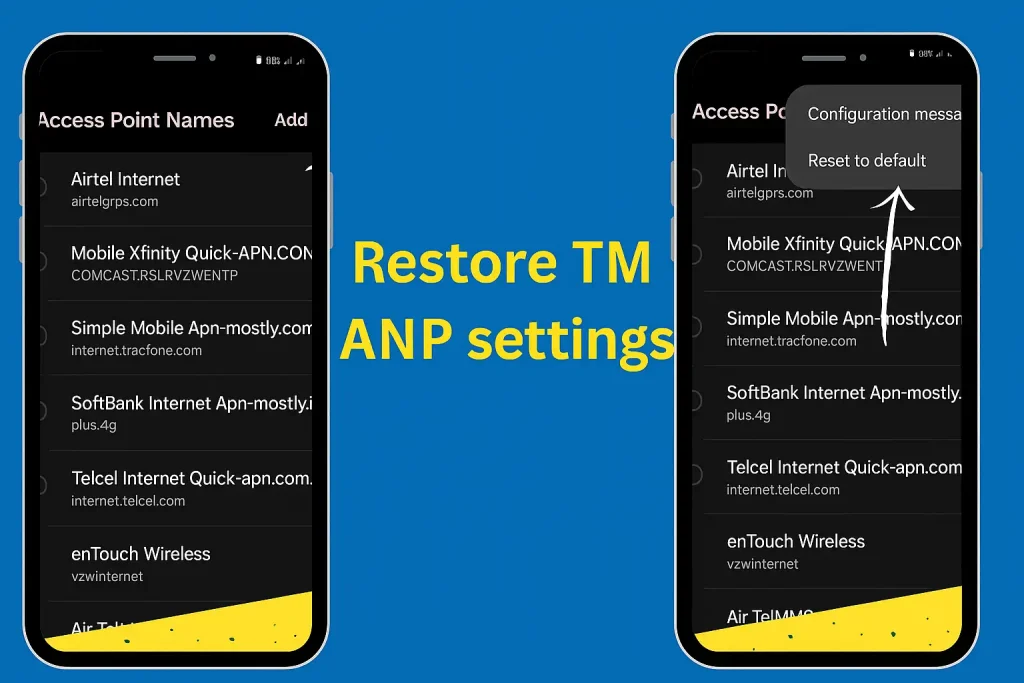
Within this section, you will find the “Mobile Network” option. Select this to find various mobile settings, including the APN settings. Tap on “Access Point Names.” Here, you will either see a list of existing APNs or an option to add a new one.
To create a new APN, look for a button with a plus sign (+) or an option stating “Add.” Selecting this will bring up a new screen where you can enter specific details provided by your mobile carrier. Make sure to input the correct APN name, username, password, and other required settings for optimal performance.
After completing the necessary entries, ensure you save your changes. This is generally done by tapping the menu button (three dots) in the upper right corner and selecting “Save.” In some cases, you may need to select the newly created APN as your active profile.
Accessing APN Settings on iOS Devices
If you are using an iOS device, accessing APN settings involves a different approach. Start by opening the settings app on your iPhone or iPad. Scroll down until you find the option labeled “Cellular” and tap on it. Within this menu, you will find an option called “Cellular Data Options.”
Tapping on “Cellular Data Options” will lead you to another menu where you can find the option for “Cellular Network.” Here, you will be able to enter the APN settings. Similar to Android, ensure that you input the correct details as specified by your network provider.
After entering the necessary information, make sure to save your changes. In iOS, modifications are usually saved automatically, but it’s a good idea to restart your device to ensure the new settings take effect.
Manually Adjusting APN Settings
To optimize your mobile internet speed, it may be necessary to manually adjust the Access Point Name (APN) settings on your device. The APN is a gateway between a mobile network and the internet, and incorrect settings can lead to slow or unreliable connectivity. Here’s how to enter or modify these settings based on your device and mobile carrier.
Start by accessing the Settings menu on your smartphone. On Android devices, scroll down and tap on Network & Internet, then select Mobile Network. For iOS devices, go to Cellular, then tap on Cellular Data Options.
Once you are within the mobile network settings, look for the option labeled Access Point Names (APN). Here, you may see existing APN configurations. Select the APN you wish to edit by tapping on it, or create a new one by locating the Add option or symbol.
Input the necessary details. Typically, you will need to provide the APN Name, Username, and Password. For example, if you are connecting to a specific carrier, enter the APN name provided by them, which often includes their company name or several letters representing the service. Username and password fields may be optional but entering them based on carrier instructions can enhance connectivity.
In addition to basic fields, you may come across other relevant settings such as MMSC (Multimedia Messaging Service Center) and Proxy. Ensure these settings match the specifications provided by your mobile carrier for optimal performance. After entering all required information, save the APN settings.
To finalize the changes, return to the mobile network settings and ensure the new or edited APN is selected. Restart your device to apply the changes effectively. With the APN settings adjusted appropriately, you should notice an improvement in your mobile internet speed.
Testing Your Internet Speed After Changes
Once you have made adjustments to your Access Point Name (APN) settings, it is crucial to evaluate the impact of these changes on your mobile internet speed. Conducting a speed test will allow you to compare your internet speeds before and after the modifications, thereby helping you determine the effectiveness of the new APN settings.
There are several reliable tools available to test your mobile internet speed. Some of the most widely used speed test applications include Ookla’s Speedtest, Fast.com by Netflix, and OpenSignal. These tools are accessible via mobile applications or directly through their respective websites. To achieve consistent results, it is advisable to conduct the speed tests under similar conditions: use the same device, perform tests at the same time of day, and refrain from using other applications that may consume bandwidth during testing.
When using these speed test tools, the results are typically displayed in several key metrics, including download speed, upload speed, and ping (latency). Download speed measures how quickly data is transferred from the internet to your device, while upload speed indicates how fast your device can send data to the internet. Ping reflects the response time of your internet connection, which is essential for activities such as online gaming or video conferencing.
To interpret the results effectively, compare your new speeds with those obtained prior to changing your APN settings. A significant increase in download and upload speeds signifies a successful adjustment. Conversely, a decrease in speed could suggest that the new APN settings are not optimal for your network provider. Keep in mind that fluctuations can occur due to various factors such as network congestion and signal strength, so it may be helpful to conduct multiple tests at different times to obtain an accurate assessment of your internet performance.
Troubleshooting Common APN Issues
Adjusting Access Point Name (APN) settings is often necessary for optimizing mobile internet performance. However, users may encounter various challenges during this process that could hinder their internet connectivity. Identifying and addressing these common APN issues can significantly enhance your mobile internet experience.
One prevalent issue is the failure to connect to the internet following an APN configuration change. This can occur if the entered settings are incorrect or not compatible with your mobile carrier. To troubleshoot this, double-check the APN settings against the official configurations provided by your carrier. Ensure that all parameters, such as the APN name, username, password, and MMSC, are accurate. Adjusting the Protocol setting to IPv4/IPv6 might also resolve connectivity issues, especially for users with dual compatibility.
Another issue can be a reduced internet speed despite having the correct APN settings. In such cases, consider resetting your network settings. Doing so can clear out any cached configurations that might be conflicting with your new APN settings. This reset can be accomplished through your device’s settings menu, usually found under “Reset options” or “Network settings”. After this reset, re-enter the APN configurations and test your internet speed once more.
Additionally, some users may experience intermittent connections or dropped signals. This can often be related to their mobile device’s compatibility with certain APN configurations. It’s advisable to research if your device model has any known issues with your carrier’s settings. Consulting forums and user reviews can help you determine if other users faced similar issues.
If these troubleshooting steps do not resolve your APN issues, contacting your carrier’s customer service may provide further assistance. Their technical support teams can offer insights specific to your account and device.
When to Contact Customer Support
While many users can resolve issues concerning Access Point Name (APN) settings independently, there are circumstances under which contacting customer support is prudent. If you have made modifications to your APN settings yet are still experiencing slow mobile internet, this could indicate a more complex underlying issue that requires professional assistance.
One clear sign that customer support should be involved is if you’ve encountered persistent connectivity issues across multiple devices. If your smartphone or tablet consistently experiences slow internet speeds, this may suggest that the problem is related to your mobile carrier’s network rather than your device’s settings. In this case, reaching out to customer support can help identify whether there are any outages or service disruptions affecting your area.
Additionally, if you are unsure about the correct APN settings for your specific device, this is another instance where professional help is warranted. Incorrectly configured settings can drastically affect internet performance. While browsing through online forums or user guides may provide solutions, they may also lead to further confusion. Customer support representatives are trained to assist with these issues and can offer accurate settings tailored to your device and service plan.
Another situation that necessitates contacting customer service is when you encounter error messages or notifications regarding your APN settings that you cannot resolve. Take these messages seriously, as they often indicate that network restrictions or configuration errors must be addressed by your carrier. Customer support is equipped to handle these inquiries and can give you the guidance needed to ensure optimal functionality.
Conclusion and Final Tips
In conclusion, the configuration of Access Point Name (APN) settings plays a pivotal role in ensuring the optimal performance of mobile internet. Properly set APN configurations not only allow users to access mobile data services but also enhance the speed and reliability of the internet connection. As technology advances, maintaining optimal mobile internet performance is critical, making the understanding of APN settings essential for all smartphone users.
To ensure a seamless mobile internet experience, it is advisable to keep your device’s operating system and applications updated. Updates often include improvements in connectivity features, which can positively impact network performance. Additionally, users should periodically check their APN settings, especially after changing carriers or updating their device. This proactive approach can prevent slow connections caused by misconfigured settings.
Monitoring network performance is also a vital step in maintaining mobile internet efficiency. Users can utilize various applications designed to assess connection speeds and network stability. If consistent slow speeds or interruptions are noted, it may be necessary to revisit the APN settings or contact the service provider for further assistance. Moreover, being aware of the network’s coverage and potential congestion during peak times can also aid in understanding performance fluctuations.
Finally, considering alternative network configurations or even resetting APN settings to default can resolve persistent connectivity issues. By following these guidelines and remaining vigilant about device settings and network conditions, users can significantly enhance their mobile internet experience. The right APN settings, coupled with diligent monitoring and maintenance, are key to unlocking the full potential of mobile internet services.