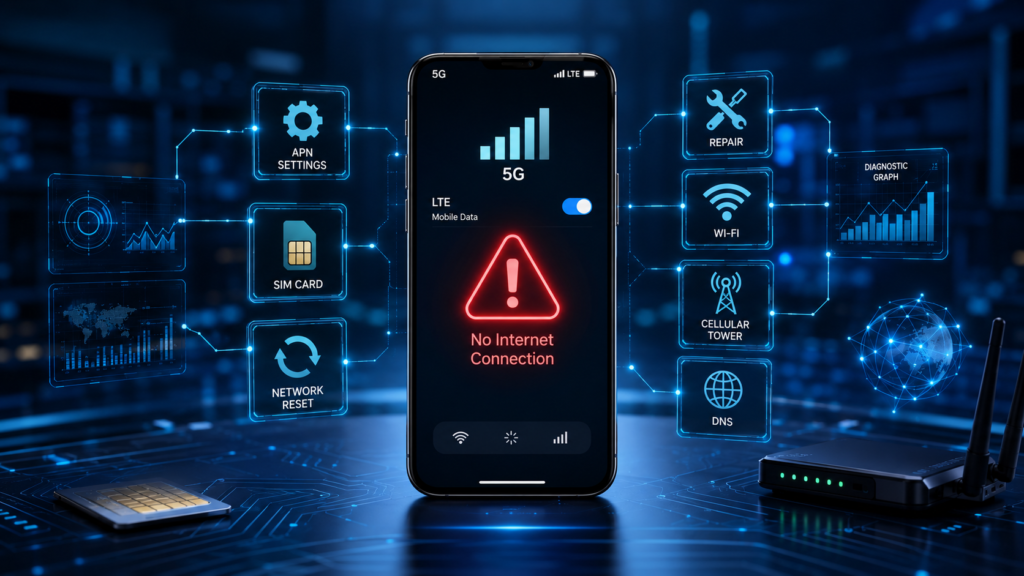
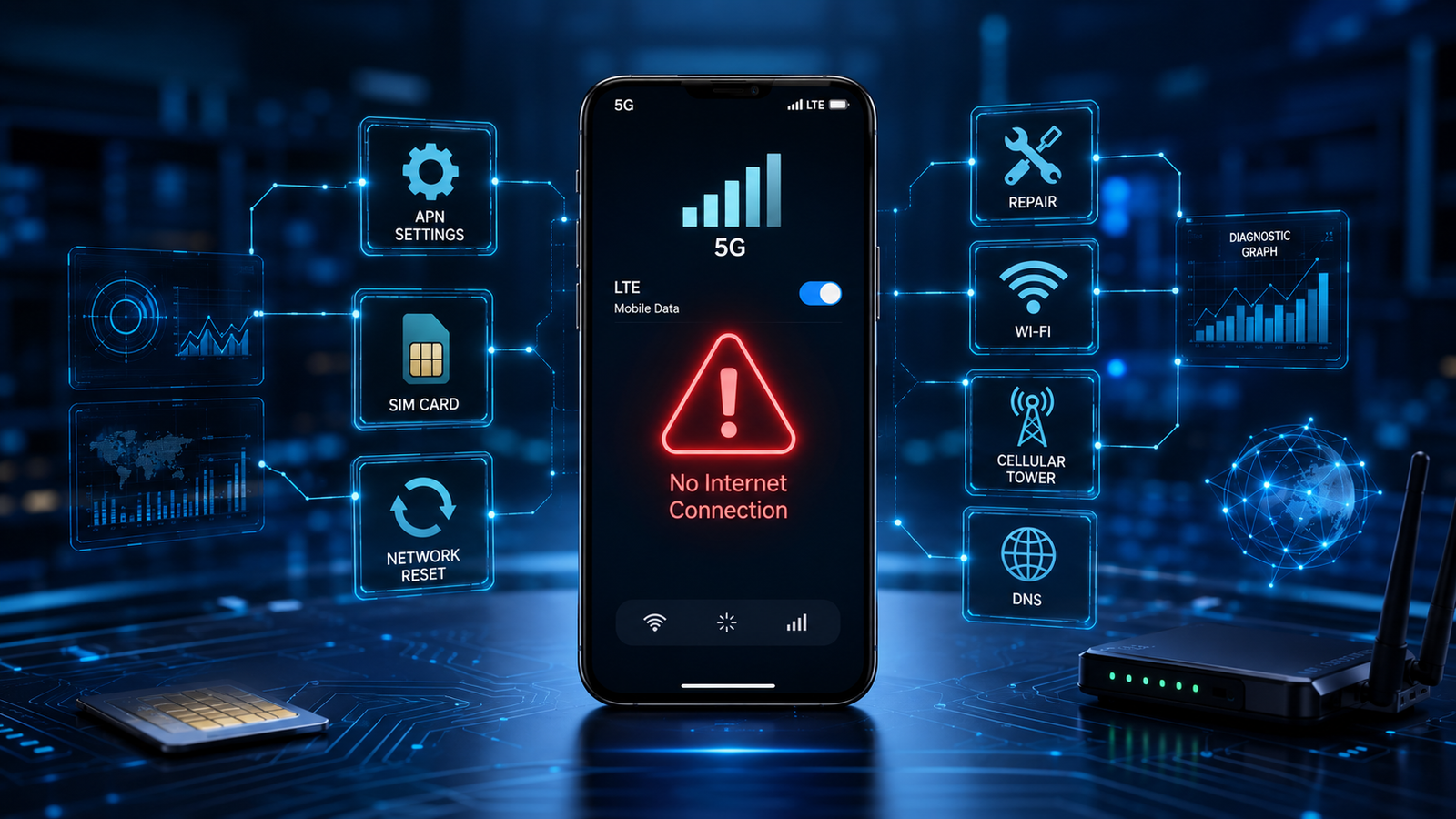
Seeing a full mobile signal with the 4G, LTE, or 5G icon but still having no internet access can be frustrating. Many users experience the Mobile Data Connected but No Internet problem on both Android and iPhone devices. Fortunately, this issue is usually caused by incorrect settings, temporary network glitches, or carrier-related problems that can be fixed without replacing your phone.
This guide explains the most common causes of the Mobile Data Connected but No Internet error and provides 15 proven solutions to restore your mobile internet connection quickly.
Why Does Mobile Data Show Connected but No Internet?
Your phone may display a strong mobile signal while failing to access the internet because the device is connected to the cellular network but cannot establish a proper data session.
Common reasons include:
- Incorrect APN settings.
- Temporary carrier outages.
- Expired mobile data plan.
- Weak or unstable network coverage.
- Software bugs.
- SIM card issues.
- Incorrect network settings.
- VPN or firewall interference.
Fortunately, most of these problems can be solved within a few minutes.
15 Proven Fixes for Mobile Data Connected but No Internet
1. Restart Your Phone
A simple restart refreshes the mobile network connection and resolves many temporary software issues.
Turn your phone off, wait 30 seconds, and then power it back on.
2. Toggle Airplane Mode
Enable Airplane Mode for approximately 30 seconds before disabling it again.
This forces your phone to reconnect to the nearest cellular tower.
3. Check Mobile Data
Open your device settings and confirm that Mobile Data is enabled.
Sometimes the option becomes disabled accidentally.
4. Verify Your APN Settings
Incorrect APN settings are one of the most common causes of this problem.
Compare your APN configuration with the official values provided by your mobile carrier.
5. Restart Mobile Network
Disable Mobile Data for a few seconds before turning it back on.
This refreshes your network session without restarting the entire phone.
6. Check Signal Strength
Even if the signal icon appears, poor coverage can prevent internet access.
Move to another location and test your connection again.
7. Remove and Reinsert the SIM Card
Turn off your phone before removing the SIM card.
Clean the SIM gently if necessary and insert it securely before restarting the device.
8. Check Your Data Plan
Verify that your mobile data allowance has not been exhausted.
Many carriers stop internet access once the monthly limit has been reached.
9. Update Your Phone Software
Keeping your Android or iPhone updated is essential for maintaining reliable network performance. Software updates often include modem improvements, security patches, and bug fixes that resolve connectivity issues.
Go to Settings > Software Update and install any available updates.
10. Reset APN Settings
If you have recently changed your APN configuration, resetting it to the default values may restore your internet connection.
On Android:
- Open Settings.
- Tap Network & Internet.
- Select Mobile Network.
- Open Access Point Names.
- Tap the three-dot menu.
- Choose Reset to Default.
Restart your phone after completing the reset.
11. Disable VPN Services
A VPN can sometimes prevent your phone from connecting to the internet properly.
Disable any VPN applications temporarily and test your mobile data again.
12. Reset Network Settings
Resetting network settings removes incorrect Wi-Fi, Bluetooth, and mobile network configurations.
Fortunately, this process does not delete your photos, applications, or personal files.
13. Try Another SIM Card
Insert another working SIM card into your phone.
If mobile internet works normally, your original SIM card or carrier account may be causing the problem.
14. Check for Carrier Outages
Sometimes the issue is not your phone but your mobile carrier.
Visit your carrier’s official website or social media pages to check whether there is a network outage in your area.
15. Contact Your Mobile Carrier
If none of the above solutions work, contact your carrier’s customer support.
They can verify your account, refresh your network connection, or identify technical problems affecting your service.
Tips to Prevent Mobile Data Problems
Following these simple recommendations can reduce future connectivity issues.
- Keep your phone updated.
- Use the correct APN settings.
- Restart your phone regularly.
- Remove unused APN profiles.
- Avoid unofficial APN configurations.
- Keep your SIM card clean and properly inserted.
- Enable automatic carrier settings updates whenever available.
Moreover, using the latest network settings improves both connection stability and internet reliability.
Frequently Asked Questions (FAQs)
Why does my phone show mobile data connected but no internet?
This usually happens because of incorrect APN settings, software bugs, network outages, weak signal strength, or problems with your mobile carrier.
Will resetting APN settings fix the problem?
Yes. Incorrect APN settings are one of the most common causes of mobile internet issues. Resetting them often restores connectivity.
Can an expired data plan cause this issue?
Yes. If your monthly data allowance has been exhausted or your plan has expired, your phone may remain connected to the network without internet access.
Should I reset network settings?
If basic troubleshooting does not work, resetting network settings is often an effective solution.
Can a damaged SIM card cause no internet?
Yes. A faulty or damaged SIM card can prevent your phone from establishing a proper mobile data connection.
Why does mobile internet work after restarting my phone?
Restarting refreshes the network connection and clears temporary software glitches affecting mobile data.
Conclusion
The Mobile Data Connected but No Internet problem can usually be fixed without professional assistance. In many cases, checking your APN settings, restarting your device, resetting network configurations, or updating your software is enough to restore your internet connection.
Furthermore, following the 15 proven fixes in this guide can help you resolve most mobile data problems on both Android and iPhone devices. If the issue continues after trying every solution, contact your mobile carrier to verify your account and network status.
For official Android network troubleshooting information, visit Android Help Center.